Use Smart Text Selection to Call, Email, Navigate Location and Chrome Search
Use Smart Text Selection to Call, Email, Navigate Location and Chrome Search
Learn about the Smart Text Selection feature on your phone.
Applicable for ColorOS 5.0 and above device. Check your ColorOS version in [Settings] > [About Phone].
Tapping and holding a text usually lets you search the web for your selected text, copy it to use elsewhere, or share it immediately through another app. But, do you know you can do more than that?
Smart Text Selection is a feature that intelligently identifies the selected text type and gives you a smart option. This feature is available in websites, messages or even apps. It is enabled by default and cannot be disabled.
The smart option varies for different types of text as shown below:
-
Place a call: Select a string of numbers, the Smart Text Selection will identify it as a phone number and suggest the Call option. Tap the Call option and your phone will bring you directly to the dial pad in the Phone app. You can place the call or create a new contact for the number.
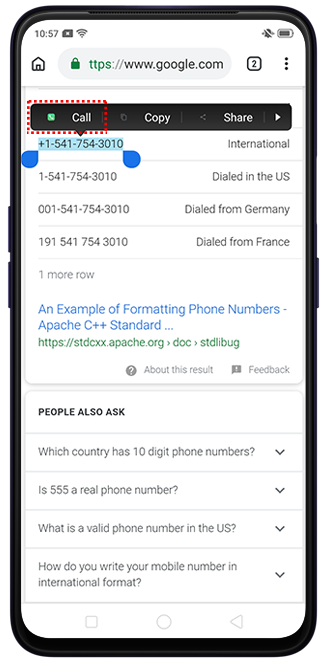
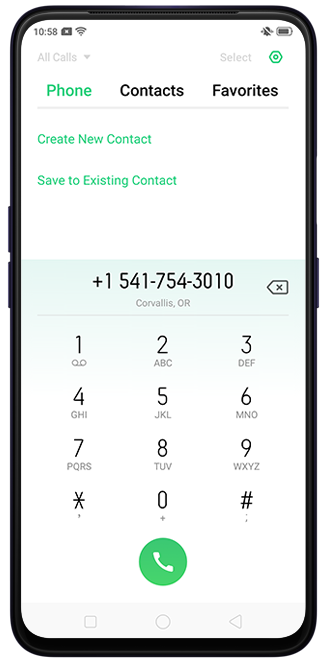
Note: The Smart Text Selection will still suggest the Call option even if the selected number may not be a valid phone number in your region.
-
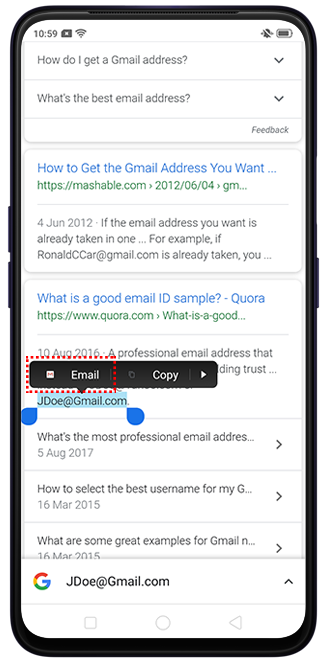
Compose email: Select an email address and tap the Email option to go to the Compose window in the Gmail app.

-
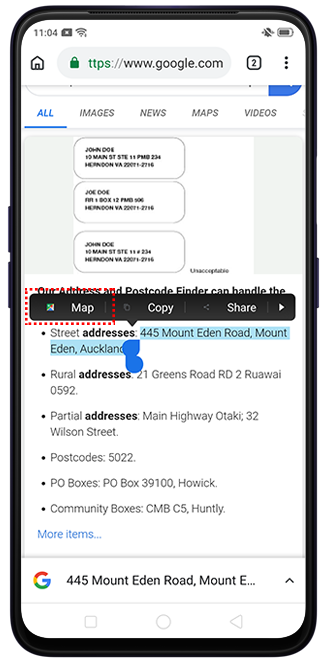
Navigate location: Select an address and tap Map to go directly to Google Maps and display the selected address.
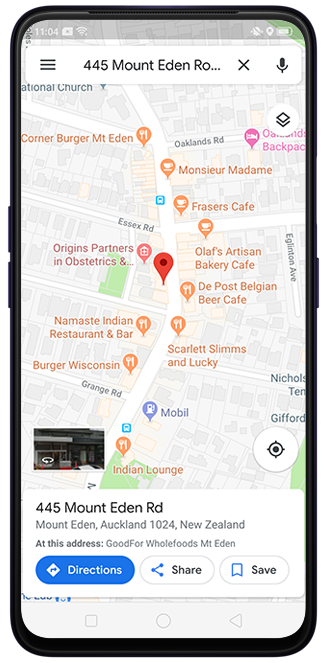
-
Chrome Search: Select a web address and the Smart Text Selection will suggest the Chrome app. Tap Open to open the web page.
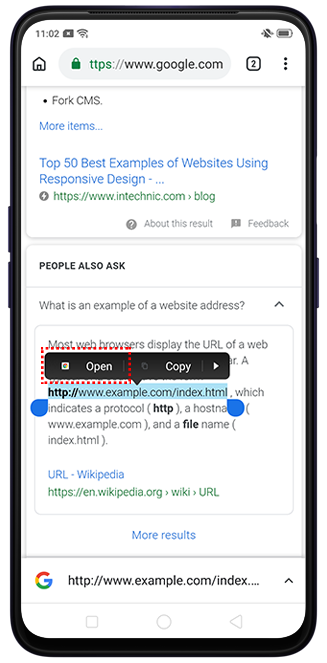
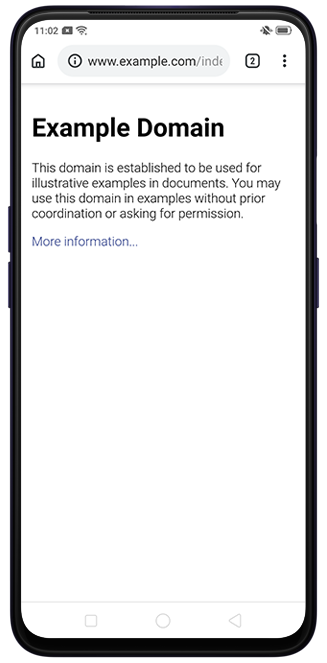
Excited to try it out? Sure.
* Pictures, settings, and paths might differ from those of your phone, but these won't affect the description in this article.
Sponsored Deals
Advertisement · Hand-picked offers, refreshed regularly
These are paid/affiliate advertisements from our partner store and are not related to OPPO or OPPO spare parts.
Related Articles
Why Do I Receive Access Requests from the Fitbit App on My OPPO Phone?
What to Do If You Encounter Voice/Video Call Issues on the Line App?
Sponsored Deals
Advertisement · Hand-picked offers, refreshed regularly
These are paid/affiliate advertisements from our partner store and are not related to OPPO or OPPO spare parts.