Light Sense Screen Fingerprint Feature in OPPO Phones
In recent years, smartphone technology has reached new heights, particularly in the realm of biometric security. OPPO has been at the forefront of this technological revolution, introducing the innovative Light Sense Screen Fingerprint feature in its devices. Unlike traditional fingerprint sensors, Light Sense Screen Fingerprint allows users to unlock their smartphones seamlessly and securely directly from the display. This groundbreaking advancement enhances user convenience and showcases OPPO's commitment to integrating cutting-edge technology into their devices. In this article, we will explore the features and customization options of Light Sense Screen Fingerprint, providing users with a comprehensive understanding of this remarkable biometric solution.
Applicable to: OPPO Devices with On-Screen Fingerprint.
What is The Light Sense Screen Fingerprint
Light Sense screen fingerprint is also known as “On Screen Fingerprint” which is based on the hardware conditions. The fingerprint is fused into a circular area with a diameter of 10 mm below the screen and the mobile phone is unlocked using a fingerprint (optical fingerprint).
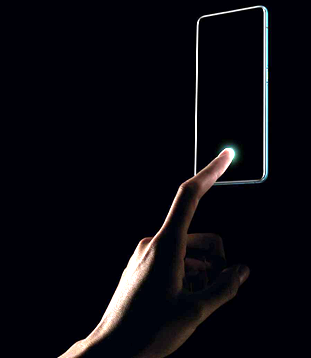
Steps to Use Light Sense Screen Fingerprint:
For ColorOS 14
Go to [Settings] > [Security and privacy] > [Device unlock] > [Face & fingerprint unlock] > [Fingerprint].
For ColorOS 6 to ColorOS 13
Go to [Settings] > [Fingerprint, Face & Password]/[Password & Biometrics]/[Password & Security]> [Fingerprint]/[Add Fingerprint].
How to Customise Unlocking Animation
For ColorOS 14
Go to [Settings] > [Security and privacy] > [Device unlock] > [Face and fingerprint unlock] > [Fingerprint] > Enter lock screen password > Select [Fingerprint Animation]
For ColorOS 7 & ColorOS 13
Go to [Settings] > [Fingerprint, Face & Password]/[Password & security] > [Fingerprint] > Enter your password > Select [Animation style]/[Fingerprint icon animation]
Other articles you may be interested in:
* Pictures, settings, and paths might differ from those of your phone, but these won't affect the description in this article.
Sponsored Deals
Advertisement · Hand-picked offers, refreshed regularly
These are paid/affiliate advertisements from our partner store and are not related to OPPO or OPPO spare parts.
Related Articles
Unified Processing Guide for the Proximity and Light Sensing Malfunction in A1K Series Models
Sponsored Deals
Advertisement · Hand-picked offers, refreshed regularly
These are paid/affiliate advertisements from our partner store and are not related to OPPO or OPPO spare parts.