How to Refresh WhatsApp Contacts on OPPO Phone
Are you facing an issue where WhatsApp shows no contacts? One of the possible reasons could be is that the Phone Manager denies WhatsApp permission to access your contacts or needs to uninstall and reinstall the WhatsApp application. To know the simple steps on how to allow, refresh, or give permissions and have access to your WhatsApp contacts or a guide before uninstalling WhatsApp, read on, and follow the simple steps.
Refresh WhatsApp Contacts
This is most likely due to the Phone Manager denying WhatsApp permission to access your contacts. Follow the steps below to know how to troubleshoot this issue:
Ensure the contacts are already saved on your phone's [Contacts] app.
Make sure that the person you want to contact is also using WhatsApp.
Allow WhatsApp to access contacts.
• Go to [Phone Manager] > [Privacy Permissions] > [App Permissions] > [Apps] > [WhatsApp] > [Contacts], and select [Allow].
• On some OPPO smartphones: Go to [Phone Manager] app > [Privacy permissions] > [Permission manager] > [Contacts] > Tap on [WhatsApp] > [Allow].
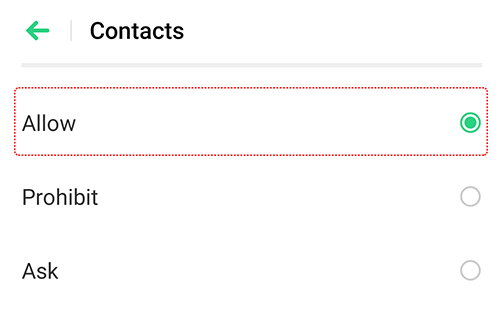
• Alternatively, you can go to [Settings] > [App Management] > [WhatsApp] > [App Permissions], and toggle on [Contacts].
• On some OPPO smartphones: Go to [Settings] > [App management] > [App list] > Look for [WhatsApp], and then tap it > [Permissions] > [Contacts] > [Allow].
Refresh the contact list in WhatsApp. At the bottom of the WhatsApp app, tap
 >
>  > [Refresh].


5. Perform backup for WhatsApp.
Open [WhatsApp], at the upper right corner, tap
> [Settings] > [Chats] > [Chat backup] > [BACK UP]. Uninstall WhatsApp and reinstall again.

Other articles you might be interested in:
* Pictures, settings, and paths might differ from those of your phone, but these won't affect the description in this article.
Sponsored Deals
Advertisement · Hand-picked offers, refreshed regularly
These are paid/affiliate advertisements from our partner store and are not related to OPPO or OPPO spare parts.
Related Articles
Sponsored Deals
Advertisement · Hand-picked offers, refreshed regularly
These are paid/affiliate advertisements from our partner store and are not related to OPPO or OPPO spare parts.