How to Force Close a Not Responding App on OPPO Phone
If an app installed on your device crashes, stops responding or freezes, force closing it may resolve the issue. This step allows you to stop the app from running in the background and clear any issues that may be causing the problem. Below is a simple troubleshooting step to help resolve the issue. Read on.
Troubleshoot unresponsive application
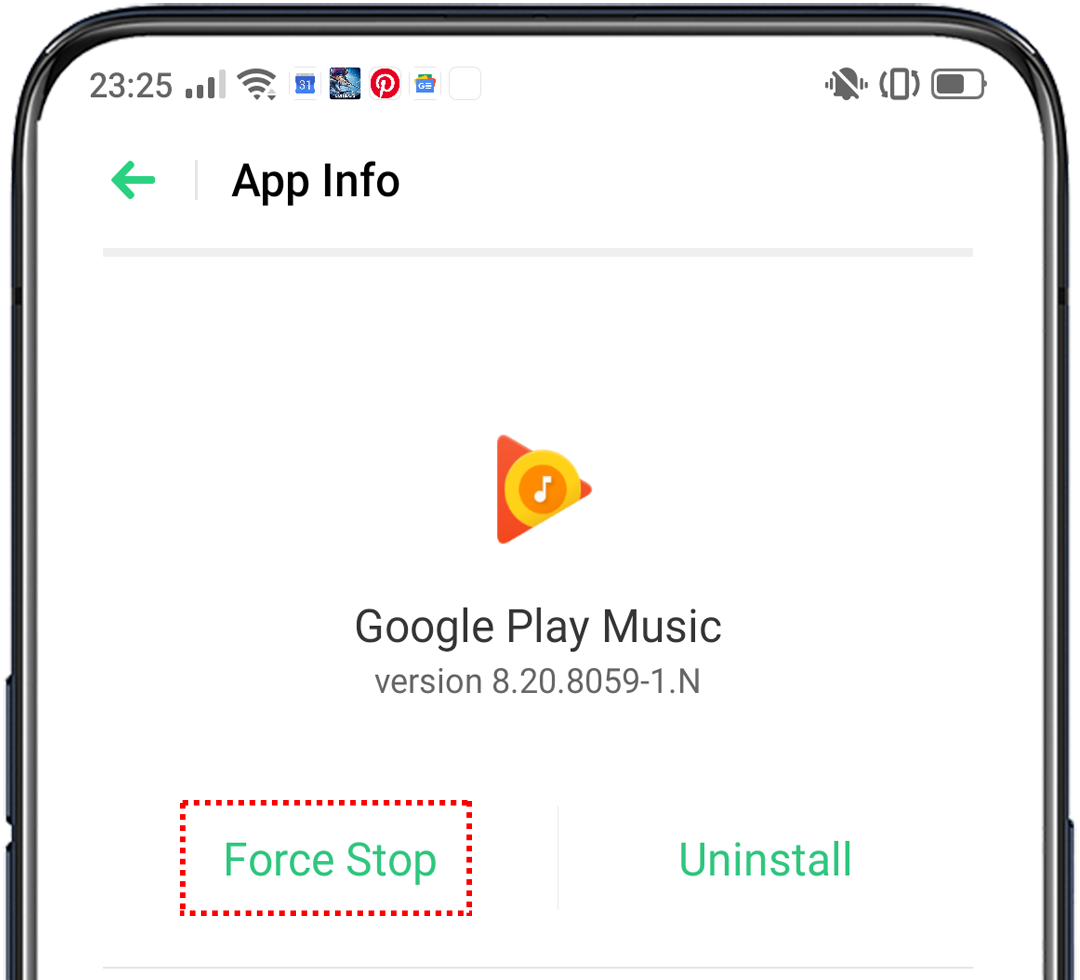
Force close the application
For ColorOS 12 and above: Go to [Settings] > [Apps] > [App management] and tap the [3-dotted] icon in the upper right corner > [Show system] and look for the app, then tap [Force stop].
For ColorOS 7.0 to ColorOS 11.3: Go to [Settings] > [App Management] > [App List] > tap the [2-dots] icon in the upper right corner > [Show System] and look for the app, then tap [Force stop].
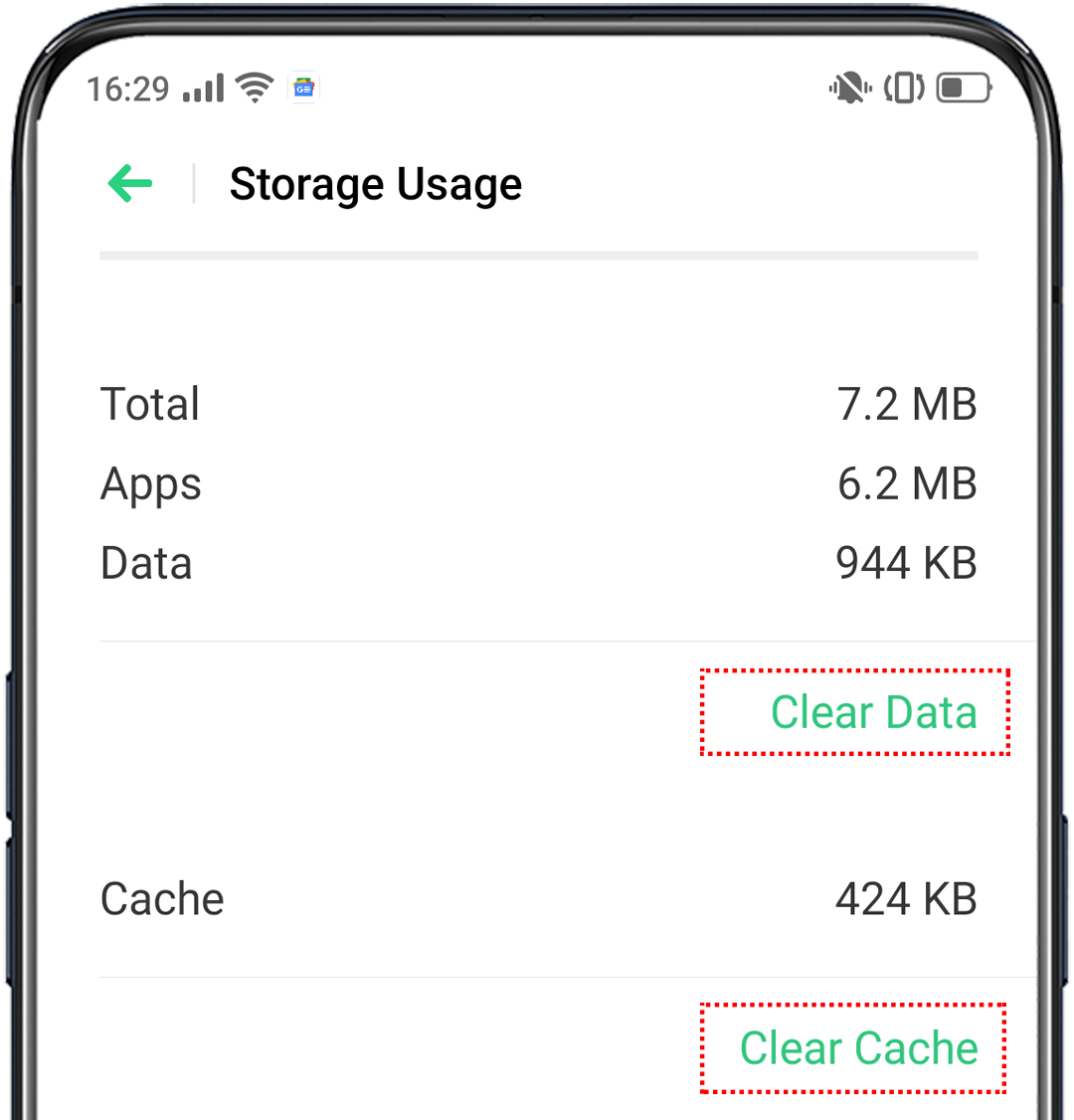
Clear the cache and data of the app
Clear the cache and data of the app in Go to [Settings] > [Apps] > [App management] and tap the [3-dotted] icon in the upper right corner > [Show system] and look for the app, then tap [Storage usage] > [Clear data] > [Clear cache]. Or see Clear Cache and Cookies in OPPO Phone.
Uninstall the app
Uninstalling and then reinstalling the app can help remove any potential issues caused by corrupted files.
Restart your device
Press and hold the Power and Volume Up buttons for at least 8 seconds until the phone is turned on.
Check for system updates
Ensure your device is up to date by going to [Settings] > [Software Updates] / [About Device].
If the abovementioned steps do not fix your concern, prepare your warranty card and contact your nearest OPPO Customer Service, you can also contact OPPO Support so we can help and assist you further with your concern. Depending on your region, you may check if you need to book an appointment before visiting your local Service Center.
Related articles:
* Pictures, settings, and paths might differ from those of your phone, but these won't affect the description in this article.
Sponsored Deals
Advertisement · Hand-picked offers, refreshed regularly
These are paid/affiliate advertisements from our partner store and are not related to OPPO or OPPO spare parts.
Related Articles
Sponsored Deals
Advertisement · Hand-picked offers, refreshed regularly
These are paid/affiliate advertisements from our partner store and are not related to OPPO or OPPO spare parts.