What Is Screen Pinning in Your OPPO and What Is It For?
What Is Screen Pinning in Your OPPO and What Is It For?
What is screen pinning? It's a function that can help in preventing important files from getting deleted accidentally. Read through this article and get to know how.
Situation: You want to learn about screen pinning on your phone.
Applicable to: ColorOS 3.0 and above devices. Check your ColorOS version in [Settings] > [About Phone].
Did your little kids accidentally deleted important files or apps while playing games on your phone? If yes, pin your screen now.
Screen Pinning allows you to pin or lock the screen to a certain app. When you pin your screen, your phone will be temporarily locked to the pinned app and you are unable to access any other apps. This feature helps to prevent opening and closing apps or deleting files accidentally.
Note: Notifications for incoming calls, alarms, messages, and more will be affected after Screen Pinning is enabled.
Enable Screen Pinning
Go to [Settings] > [Additional Settings] > [Device & Privacy] > [Screen Pinning] and toggle on [Screen Pinning].
Note: The settings path slightly differs for ColorOS 3.2 and below devices.
For ColorOS 3.2 devices, go to [Settings] > [Additional Settings] > [Security & Privacy] > [Screen Pinning] and toggle on [Screen Pinning].
For ColorOS 3.0 and 3.1 devices, go to [Settings] > [Additional Settings] > [Safety & Privacy] > [Screen Pinning] and toggle on [Screen Pinning].


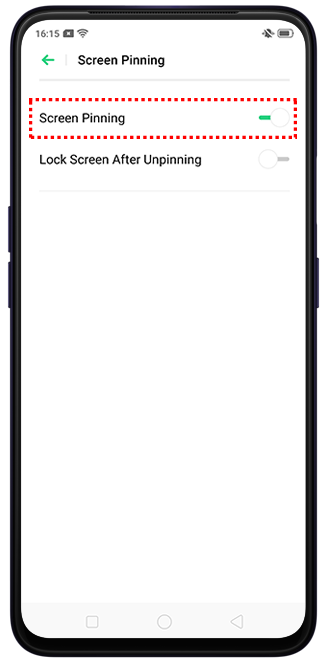
Note: Screen Pinning will be unavailable if Navigation Gestures is turned on.
Pin a screen
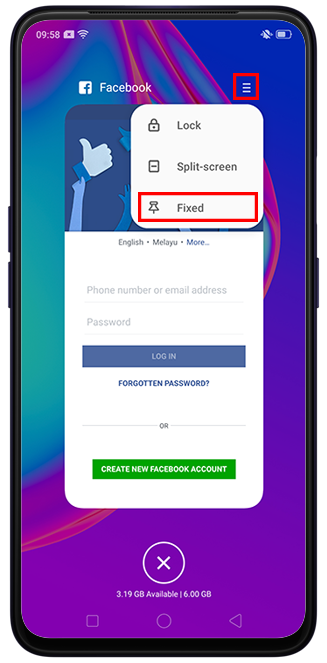
Open an app and at the bottom of the screen, tap the [Multitask] key . On the top of the task, tap [Menu]
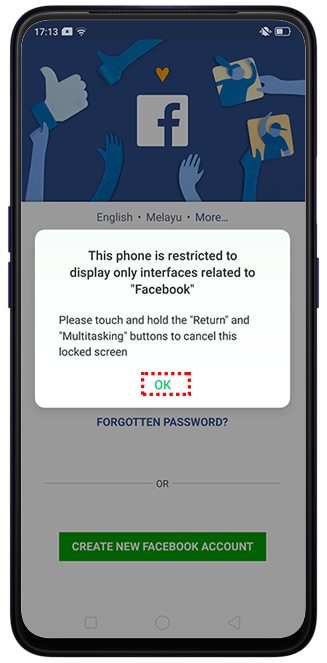
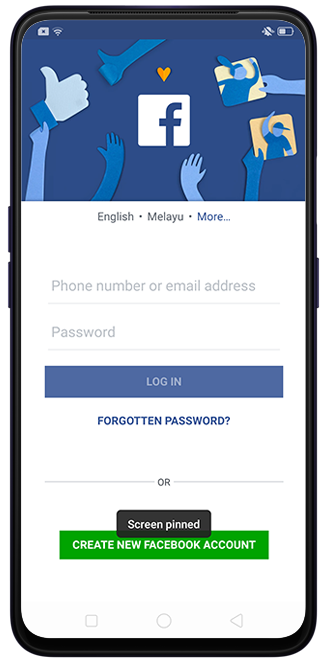
  > [Fixed]. A pop-up notification will appear. Tap [OK]. You will see the "Screen pinned" message on your screen.
Note: The steps to pin the screen slightly differ for ColorOS 3.2 and below devices.
For ColorOS 3.2 and below devices, to use screen pinning, tap the [Multitask] key and then tap the pushpin button at the bottom of the application preview interface.
Unpin a screen
To disable pinning to a screen, touch and hold the [Return]  and [Multitask] keys until you see the "Screen unpinned" message on your screen.
For ColorOS 3.2 and below devices, press and hold the [Multitask] key until you see the "Screen unpinned" message on your screen.
.png)
*Pictures, settings, and paths might differ from those of your phone, but these won't affect the description in this article.
Sponsored Deals
Advertisement · Hand-picked offers, refreshed regularly
These are paid/affiliate advertisements from our partner store and are not related to OPPO or OPPO spare parts.
Related Articles
What To Do If the Screen Pinning Option on OPPO Phone is Disabled/Grayed Out?
Sponsored Deals
Advertisement · Hand-picked offers, refreshed regularly
These are paid/affiliate advertisements from our partner store and are not related to OPPO or OPPO spare parts.