The NFC Mobile Payment on OPPO Phone
Do you want to avoid constantly running out of cash and forgetting your bank card when you go out? What if you could effortlessly pay for your purchases using just your mobile phone? NFC payments on your OPPO phone allow you to do just that! NFC technology on your OPPO phone is compatible with Google Payments and a variety of other payment apps, providing you with convenient payment options. To find out more about how to use this feature, read on and try the steps below.
How to use Tap & Pay
1. Go to [Settings] > [Other Wireless Connections] / [Connection & sharing] > toggle [NFC] to enable.
2. Tap [Tap & pay].
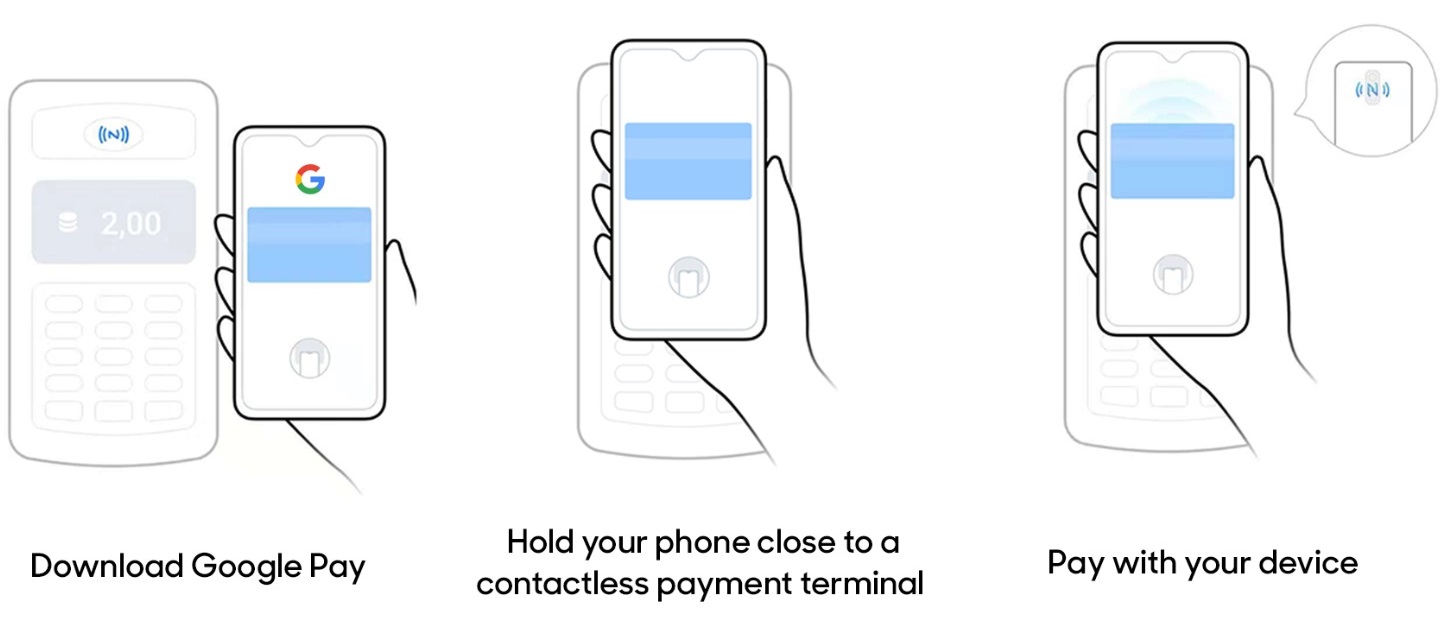
3. Select the default payment app. If no payment app is detected in the Default Payment App, download and install Google Pay, and make sure your payment details are saved. Go back to [Tap & pay] and select the Google Pay app.
4. Hold your phone close to a contactless payment terminal (with the back of your phone facing the payment device) and tap to pay.
Related articles:
*Pictures, settings, and paths might differ from those of your phones, but these won't affect the description in this article.
Sponsored Deals
Advertisement · Hand-picked offers, refreshed regularly
These are paid/affiliate advertisements from our partner store and are not related to OPPO or OPPO spare parts.
Related Articles
Sponsored Deals
Advertisement · Hand-picked offers, refreshed regularly
These are paid/affiliate advertisements from our partner store and are not related to OPPO or OPPO spare parts.