Instructions on After-sales Diagnostics Tools
1. Introduction
The After-sales Diagnostics Tool is used to analyze important LOGs on the phone, which record alerts and notifications when modules such as Android, kernel, multimedia, and network are not working properly. With the help of its diagnostics results, the after-sales staff can preliminarily assess the phone's stability.
The new version of the Diagnostics Tool updates its analysis results to the Passive Feedback System, allowing developers timely to access relevant information for further analysis.
2. Tool Details
2.1 User Interface Introduction
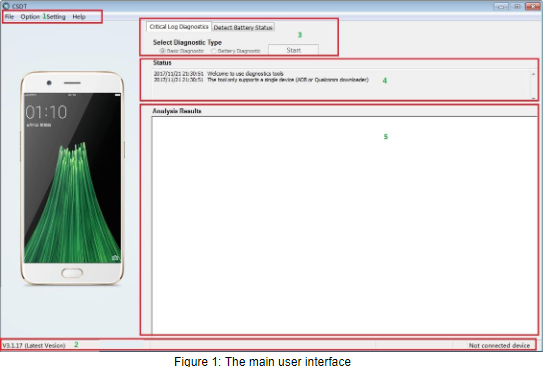
Main Areas:
(1) Menus;
(2) Version info, device info and download status info;
(3) Select diagnostic type;
(4) Download status info;
(5) Diagnostics results.
2.2 Instructions
2.2.1 The new tool supports the ADB Mode and Qualcomm Loader Mode
ADB Mode:
Before turning on the tool, please make sure that the phone is connected via a USB cable and is in USB debugging mode;
Turning on the tool;
Connect the phone and click "Start" to start diagnostics when the ADB device appears in the "Device Info" area.
Qualcomm Loader Mode:
1) Open the tool;
2) Power off the phone first, and then hold down the "Volume Up" button (on some phones, you need to press both the "Volume Up" and "Volume Down" buttons), connect the phone to the PC via a USB cable;
3) When a COMXX device appears in the "Device Info" area, the "Status Info" area will show a message similar to "USB Loader inserted --> Qualcomm HS-USB QDLoader 9008 (COM42)". Click "Start" to begin diagnostics.
This mode is applicable when the phone won't boot up. The platforms it currently supports include Qualcomm Msm8974, Msm8939/8916, Msm8976, and Msm8953.
2.2.2 The New Tool Is Backward-compatible
The biggest difference between it and the old versions: The new tool supports key LOG information separation and new format analysis, as well as upload and automatic version update.
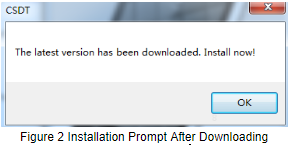
The tool will check for updates when it is turned on, and starts downloading the new installation package in the background when a new version is available. You will see a pop-up window asking whether you want to update the tool when the new version is downloaded and verified. As shown in Figure 2 below:
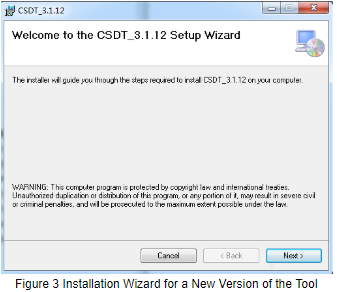
An installation wizard for a new version of the tool will appear when you select "OK", as shown below in Figure 3.
2.2.3 Different Tool Versions Have Different Analysis Results Formats
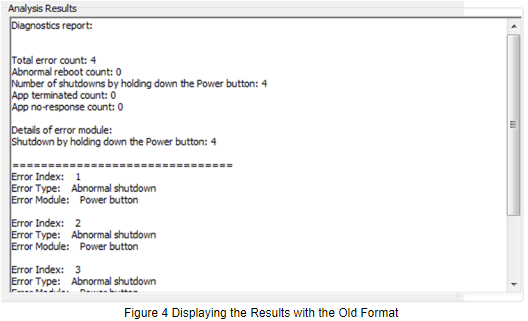
As mentioned earlier, the new tool is backward-compatible. But its results are displayed in a different way as they are formatted differently from the old versions.
The results with the old format are displayed in a similar way to the Figure 4 below:
The results with the new format are displayed in a similar way to the Figure 5 below:
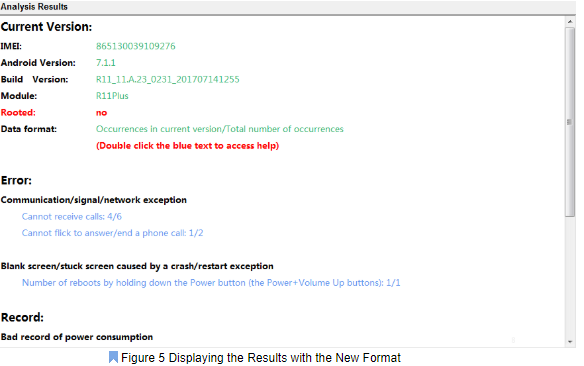
As we can see, there is a step of uploading the analysis results with the new tool. The results will be uploaded after the phone's IMEI number is parsed. We can also view the analysis results in "Menu" - "Open the output directory".
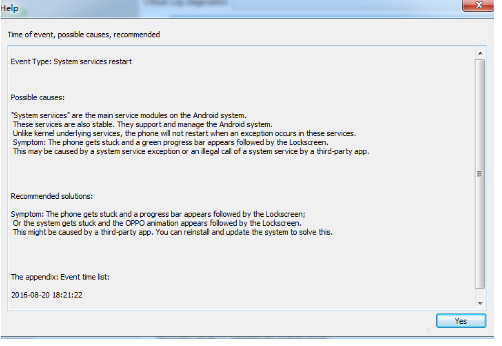
Double clicking on the diagnostics results (blue colored text), (e.g., double clicking on "Cannot call or calls drop"), brings up the related diagnostics help dialog. The interface is as follows:
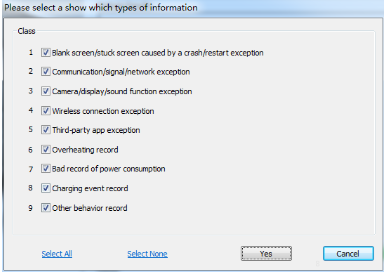
You can also go to Menu - Options - Set Display Category Options to customize the diagnostic results displayed on the interface. Please see the following image.
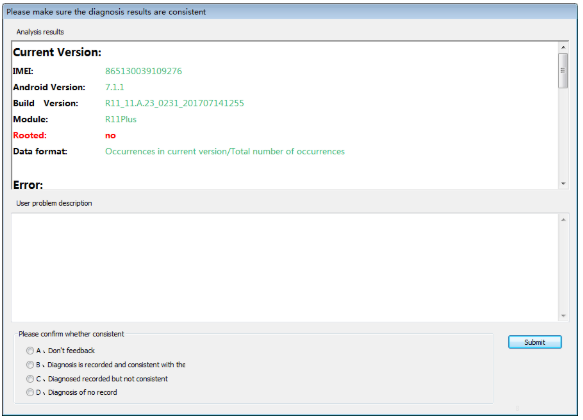
2.2.4 Upload User's Description of the Problem Using the New Tool
Check if the analysis results are consistent with the user's description of the problem and select the options accordingly, then click Submit.
2.2.5 Special instructions for battery information diagnostics
Battery information diagnostic is limited to user feedback that the battery is not durable. When the user uses more than 5% power it will show the user's usage record for this period of time to help determine whether the user battery is not durable. The information displayed includes the cumulative of bright use time of the user, the cumulative use of the off-screen, and the application statistics of bright screen time and gives a judgment as to whether the normal power consumption exist and possible problems exist if the amount of information is sufficient.
If there is no record after the diagnosis, the possible reason is that from the last full charge to the current power consumption of less than 5% or the phone has been placed unused.
3. Note
As this tool uses ADB and Qualcomm Downloader to perform analysis, install their drivers first on the PC. It takes a while to recognize the ADB due to its specificity, so please be patient and wait until its version number is detected before operating. Perform no other operations after clicking the Start analysis button which will become operable again when the analysis is finished.
In addition, upgrading for the first time can take a long time, please be patient. It is not recommended to conduct analysis during the upgrade process.
Sponsored Deals
Advertisement · Hand-picked offers, refreshed regularly
These are paid/affiliate advertisements from our partner store and are not related to OPPO or OPPO spare parts.
Related Articles
Sponsored Deals
Advertisement · Hand-picked offers, refreshed regularly
These are paid/affiliate advertisements from our partner store and are not related to OPPO or OPPO spare parts.