How to Use Photo Cleaner to Efficiently Maintain Storage?
How to Use Photo Cleaner to Efficiently Maintain Storage?
Did your phone run out of space due to many redundant photos? Delete them all because the photo cleaner is like a phone storage cleaner. If you're wondering how, read on!
Learn how the Photo Cleaner helps you to intelligently identify and remove unwanted photos.
Applicable for ColorOS 5.0 device. Check your ColorOS version in [Settings] > [About Phone].
The Photo Cleaner in your phone intelligently picks out screenshots, similar, burst, beautified and blurry photos, so you can quickly delete them all in no time.
1. Go to [Phone Manager]  > [Clean Up Storage] > [Photo Cleaner], and tap any of the photos categories.
2. Select the unwanted photos or tap [Select All] to select all the photos under the category.
3. Tap [Delete pics] > [Delete photos].

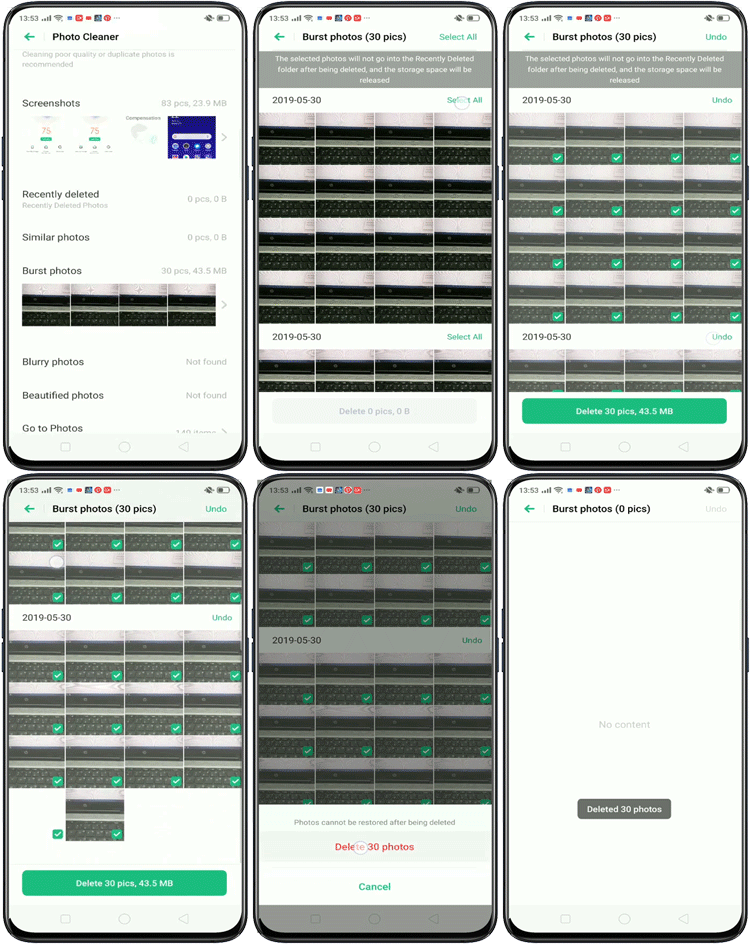
Note: If you select all photos to delete, you will be required to enter lock screen passcode to confirm.
For similar or duplicate photos, the Smart filtering technology intelligently selects the worst of similar images using face detection and AI recognition, so you can delete them in one tap.
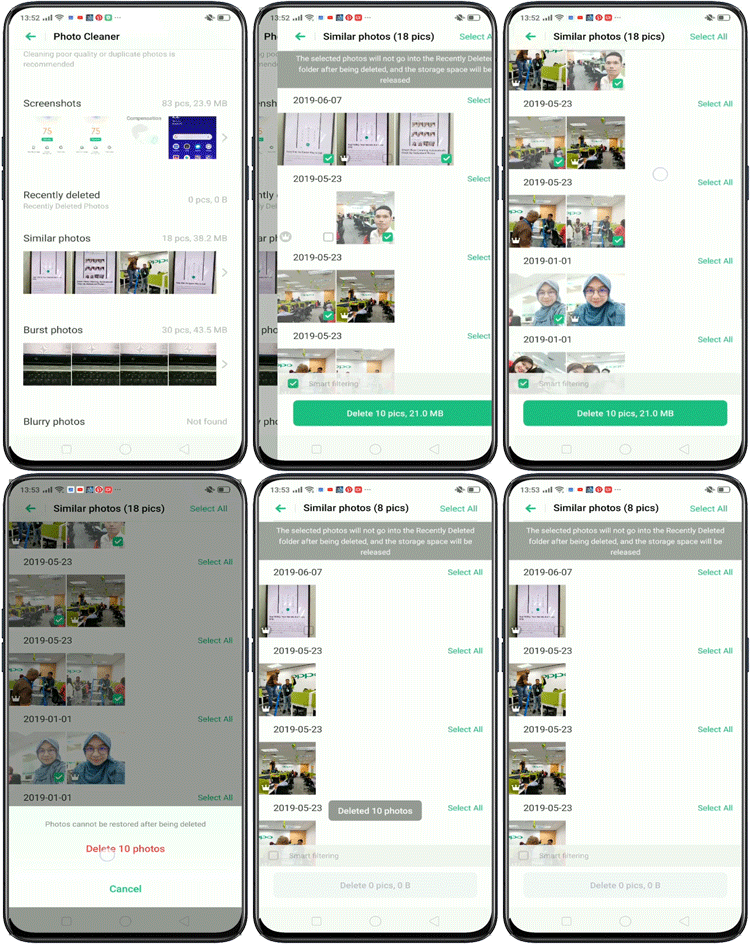
Note: The deleted photos will be completely removed and will not be stored in the Recently Deleted folder.
Don't wait, choose the unwanted old ones and free your phone storage now!
* Pictures, settings, and paths might differ from those of your phone, but these won't affect the description in this article.
Other articles you may find helpful:
Sponsored Deals
Advertisement · Hand-picked offers, refreshed regularly
These are paid/affiliate advertisements from our partner store and are not related to OPPO or OPPO spare parts.
Related Articles
Storage Space Remains Unchanged after Deleting Some Videos and Photos
Why My Phone Storage Remains Unchanged after Deleting some Photos and Videos?
Sponsored Deals
Advertisement · Hand-picked offers, refreshed regularly
These are paid/affiliate advertisements from our partner store and are not related to OPPO or OPPO spare parts.