How to Fix the Navigation Bar Missing on OPPO Phone
Navigating your OPPO phone is made easier with the navigation bar, which includes the Recent Task, Home, and Return buttons. These buttons are used to operate your device from one app to another. However, in some cases, the navigation bar on your device may be missing. If you encounter this issue on your OPPO device, continue reading to discover how to resolve it.
Navigation bar disappeared
A navigation bar (at the bottom of the screen) consists of three virtual navigation keys that let users operate their phones faster.
.png)
Sometimes, users may have set the navigation bar to hide when not being used to have a full screen, especially while playing games and videos.
View the hidden navigation bar
Slide up from the bottom of the screen in landscape mode, or slide left in portrait mode.
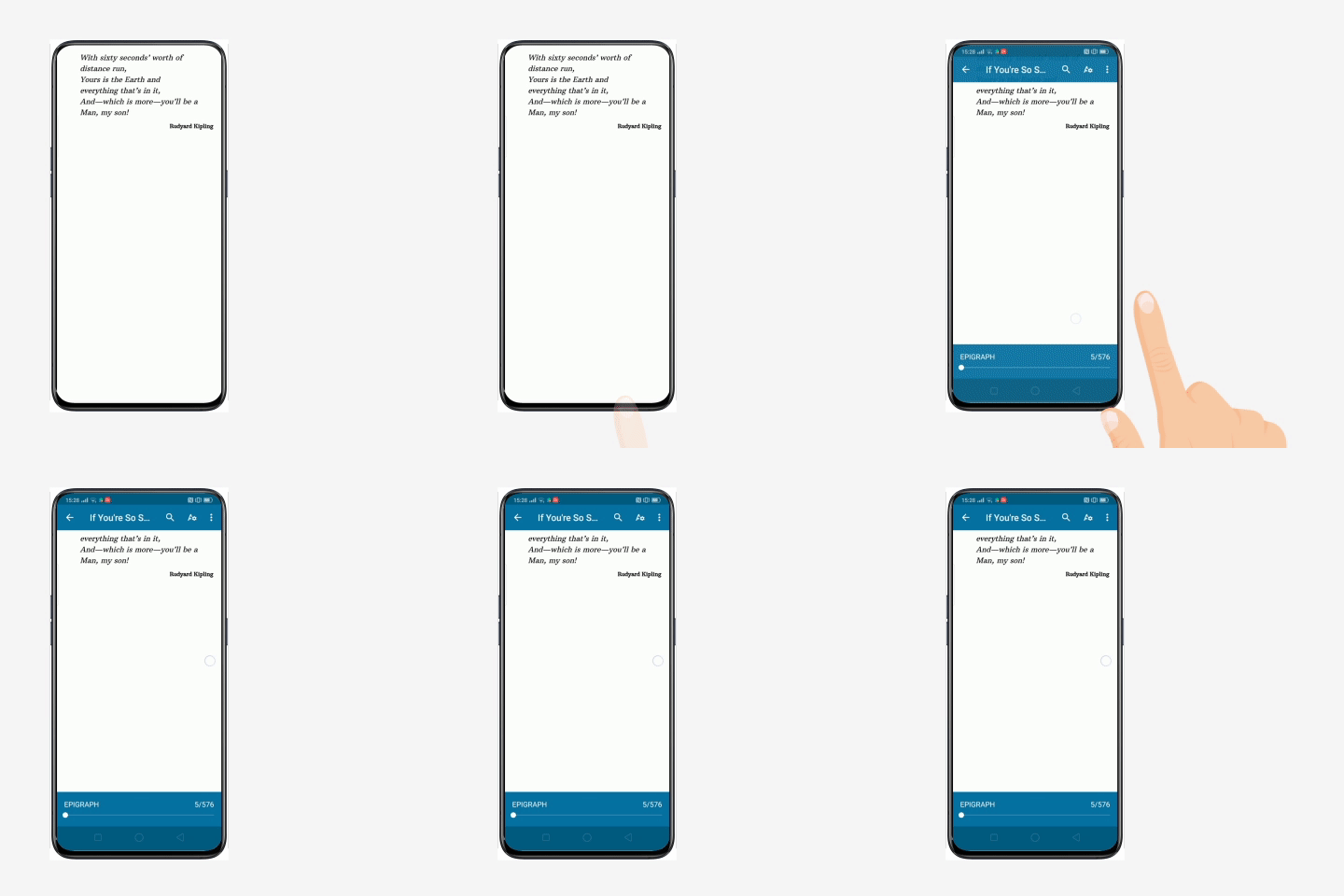
(2))
Disable the "Virtual Keys Can Be Hidden" setting:
Go to [Settings] > [Convenience Tools] / [Convenience Aid] / [Smart & Convenient] > [Navigation Keys] / [Navigation Buttons], and toggle [Virtual Keys Can Be Hidden] / [Virtual Navigation Keys Can Be Hidden] / [Auto Hide Virtual Buttons] to disable.
For ColorOS 3.2: Go to [Settings] > [Additional Settings] > [Navigation Keys] > [Virtual Navigation Keys Can Be Hidden] and toggle to disable.
For ColorOS 12: Go to [Settings] > [System settings] > [System navigation] > Enable the [Buttons].
For ColorOS 13: Go to [Settings] > [Additional Settings] > [System navigation] > Enable the [Buttons].
Note: Hiding Virtual Keys is not supported on ColorOS 11 and above.

Video tutorial
Watch our short video on how you could customize your OPPO smartphone's navigation keys on this link: How to Customize Navigation Keys on Your OPPO phone.
If the abovementioned steps do not fix your concern, prepare your warranty card and contact your nearest OPPO Customer Service. You can also contact OPPO Support so we can help and assist you further with your concern. Depending on your region, you may check if you need to book an appointment before visiting your local Service Center.
Related articles:
* Pictures, settings, and paths might differ from those of your phone, but these won't affect the description in this article.
Sponsored Deals
Advertisement · Hand-picked offers, refreshed regularly
These are paid/affiliate advertisements from our partner store and are not related to OPPO or OPPO spare parts.
Related Articles
How to Fix Missing WhatsApp Incoming Call Pop-ups After Using Clone Phone
Sponsored Deals
Advertisement · Hand-picked offers, refreshed regularly
These are paid/affiliate advertisements from our partner store and are not related to OPPO or OPPO spare parts.