What is the Accessibility Menu in OPPO Phone
The Accessibility Menu provides a large on-screen menu to control your phone. With 12 options, you can lock your phone, control volume and brightness, take screenshots, and more. Read on to learn how to enable and use the Accessibility Menu on your phone.
Note: Check your phone's ColorOS version in [Settings] > [About Phone] / [About Device].
Accessibility Menu functions
From the Accessibility Menu, you can do the following actions:
Launch Google Assistant
Turn the Volume up or down
Open recent apps
Lock the screen
Open Quick Settings and Notifications
Take screenshots
Power Control
Turn on the Accessibility Menu
On your home screen, open [Settings] > [Additional Settings] > [Accessibility] > [Accessibility Menu]. Toggle on [Accessibility Menu] / [Shortcut] and tap [OK] / [Allow] to allow access.
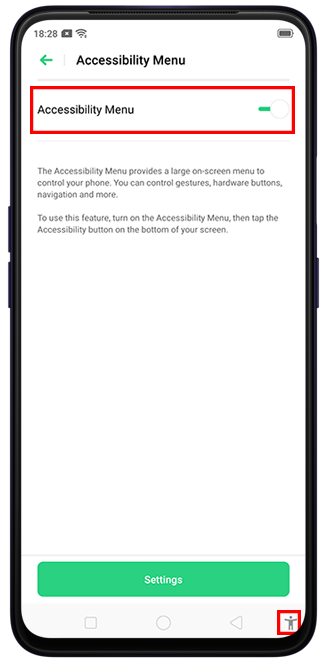
You will see the Accessibility icon  at the bottom of your navigation bar. This icon will stay on the Home Screen, in apps, and on any screen where the navigation bar is visible.
Use the Accessibility Menu
At the bottom right of your screen, tap  . Choose an option from the menu. For more menu options, tap the right arrow or slide left.
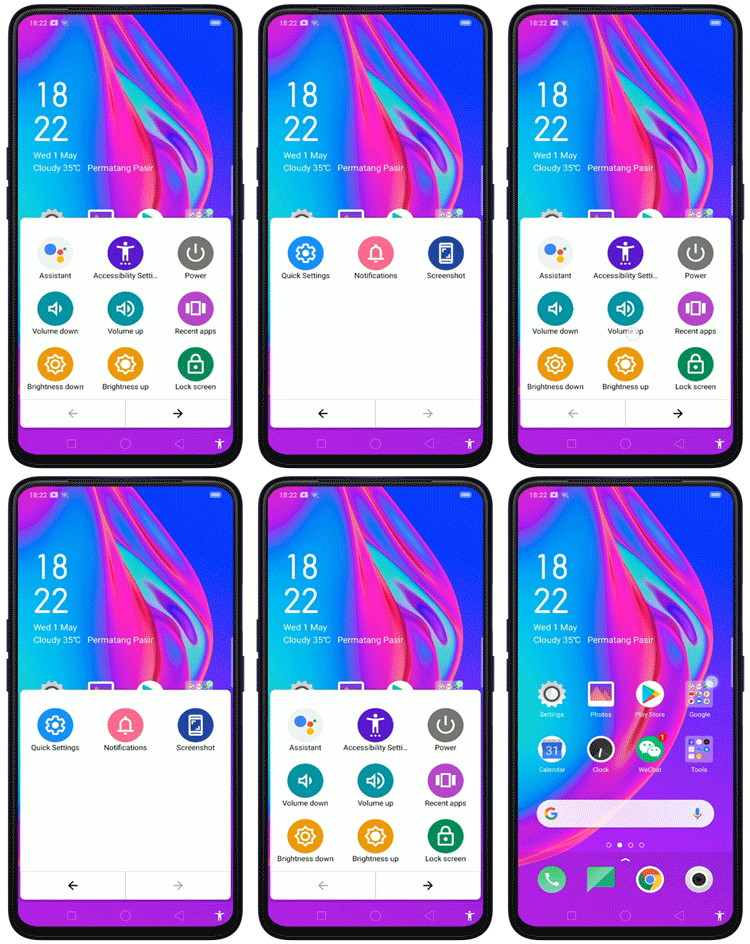
If you turned on more than one accessibility feature that uses the Accessibility button, tap and hold the Accessibility icon to switch between features.
Increase Accessibility Menu buttons size
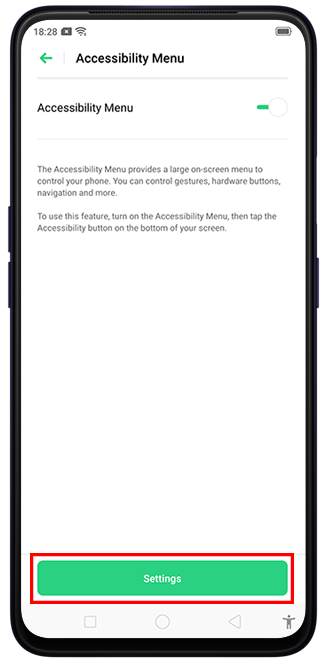
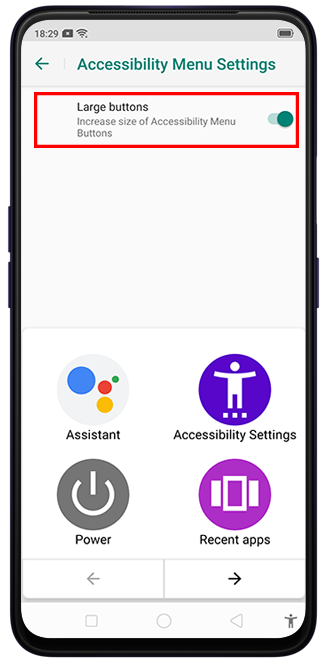
From the Accessibility Menu screen, tap [Settings] and enable [Large buttons].
Related articles:
*Pictures, settings, and paths might differ from those of your phone, but these won't affect the description in this article.
Sponsored Deals
Advertisement · Hand-picked offers, refreshed regularly
These are paid/affiliate advertisements from our partner store and are not related to OPPO or OPPO spare parts.
Related Articles
What is Accessibility and How to Enable Accessibility Shortcut in OPPO Phone?
Sponsored Deals
Advertisement · Hand-picked offers, refreshed regularly
These are paid/affiliate advertisements from our partner store and are not related to OPPO or OPPO spare parts.