Learn About the ColorOS 6.0 and Enjoy Its Amazing Features
Learn About the ColorOS 6.0 and Enjoy Its Amazing Features
Check the new features of ColorOS 6.0. There's an update on the control center and notification center, a new look for volume, add on features on wallpaper, game space, and more! Check more what features are added with ColorOS 6.
What's New in ColorOS 6.0?
Easy on the eyes. Smartest features as of yet. A new look. A more bold and intuitive icon to make browsing fun and exciting. Moving forward to greatness.
Control Center and Notification Center
Easy to see its bigger icons. Added more colors to categorize each feature. It's easier to look for the feature that you would want to enable and disable.
Open Control Center. Swipe down from the very top of any screen. You'll see the shortcuts listed on top, and notifications below.
You may now hide those notifications just by choosing Unimportant Notifications so you will have a cleaner and spacious look on the screen. View Control Center.
Volume Setting New Look
Changing volume is now more intuitive with its bigger icon. Your finger easily fits to adjust the volume of ringtone, media, and alarm. It's also beside the hard volume buttons so it’s not that hard to miss.
To change volumes for the ringtone, media, or alarm, press first either the Volume Up or Volume Down button so the volume setting will show. Then you may swipe up and down to manage the volume.
Static and Live Wallpaper
Amazing Wallpapers to choose from. More than the Static Wallpaper which has variations of sophistication you also have the Live Wallpaper.
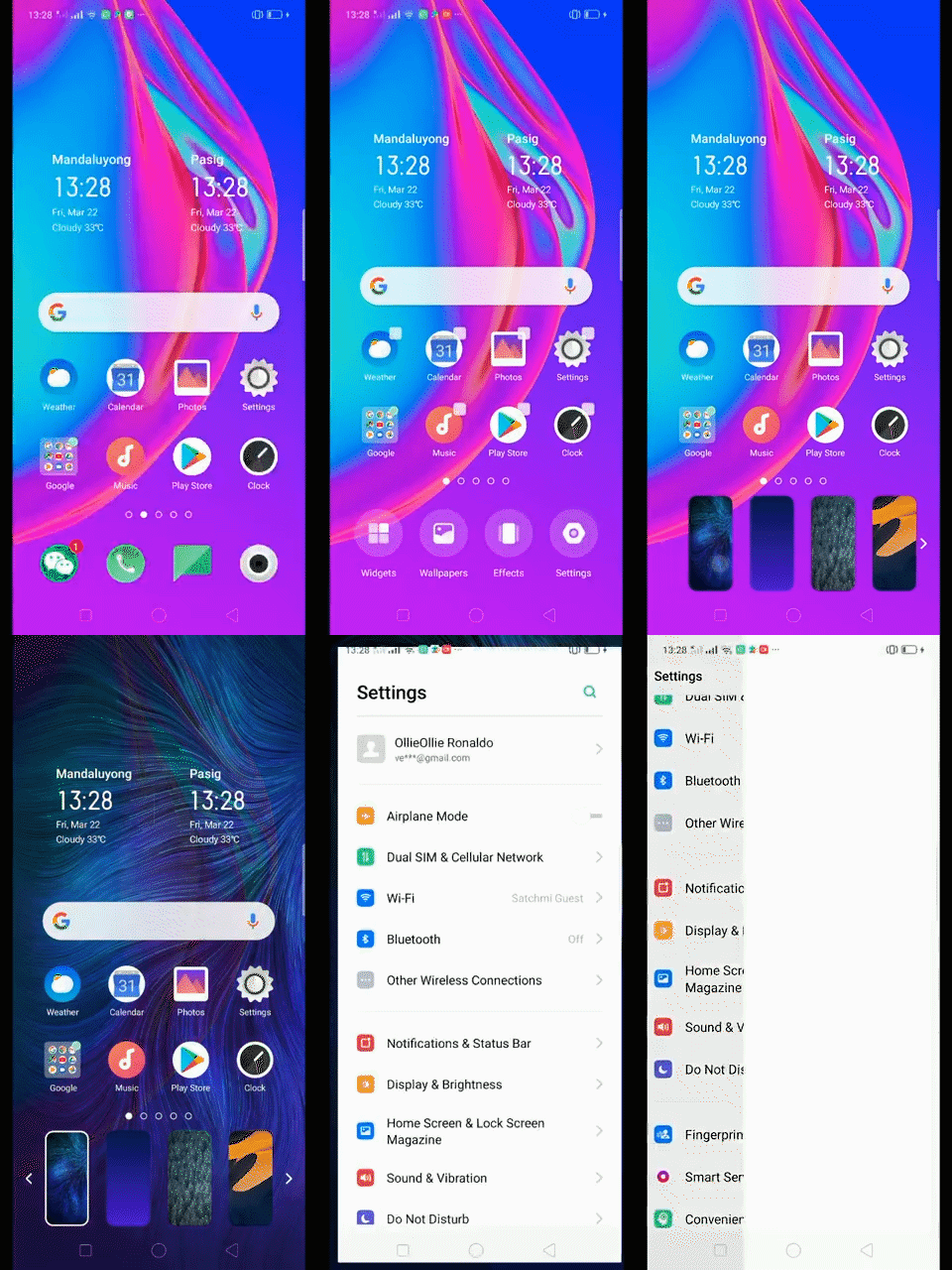
Added Home Screen Mode
You can now choose modes for your Home Screen.

Riding Mode
Make sure you are safe when driving a motorcycle or when doing your favorite hobby like cycling. If this is enabled, incoming calls will be muted so you won’t be tempted to check your phone while on the road. When “Riding Mode” is turned on, all notifications except for incoming calls will be muted by default. You can manage people who can call you as well.
Game Space 2.0
Manage your games. Whenever you install a game, the game space will determine that it is a game application and is integrated into the game space, and the relevant game optimization function is enabled for the game.
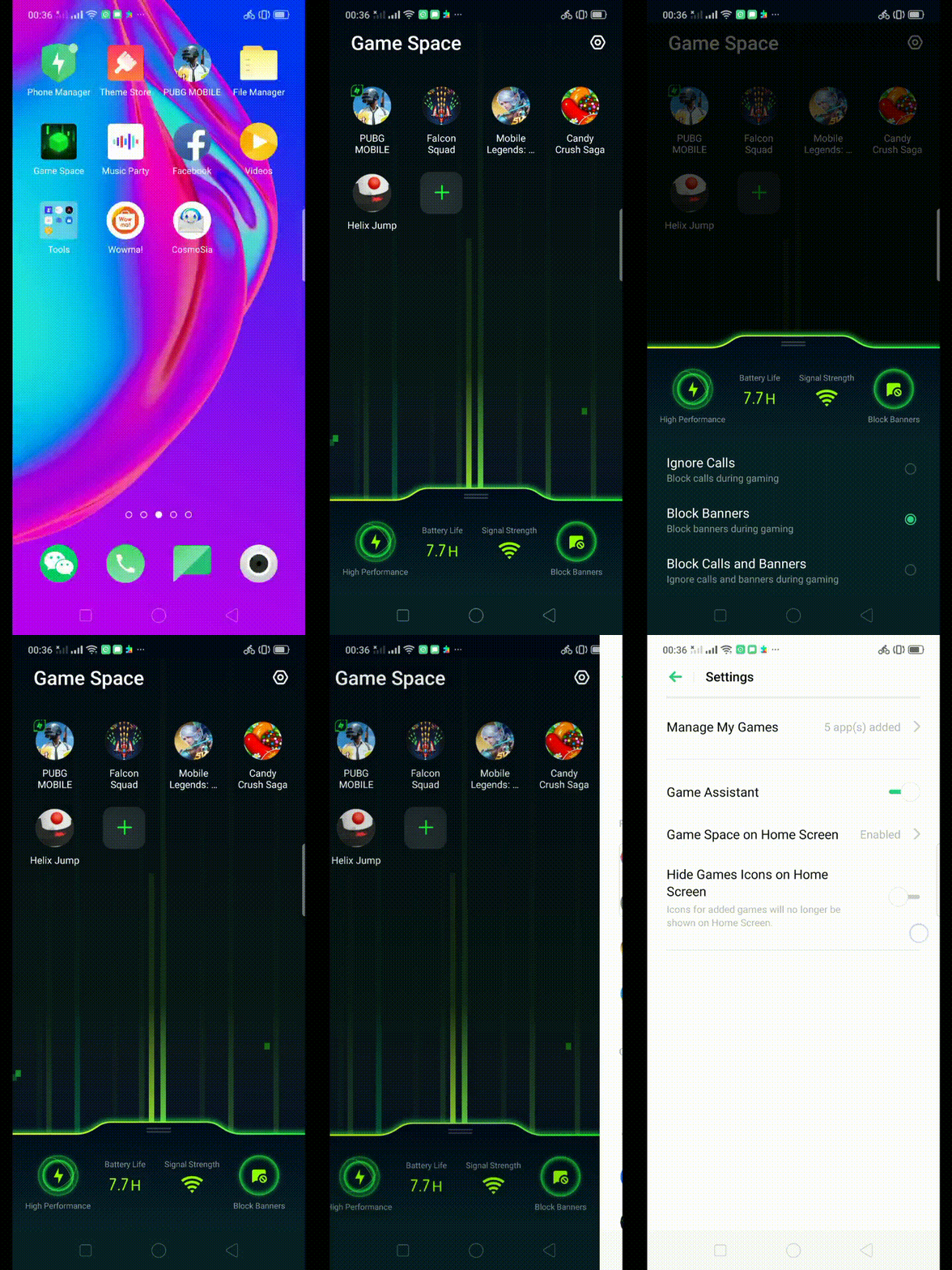
Hyper Boost
Hyper Boost is a new technology that aims in improving the system of your phone. If you are a gamer then you will enjoy a better gaming experience. This will also work with some of the apps on your phone. Hyper Boost makes your phone perform better but saves battery. How awesome is that? On your Game Space app, choose High Performance so you can use Hyper Boost technology.
VOOC 3.0
VOOC 3.0 reaches full charge 20 minutes faster than VOOC 2.0. Enjoy your fully charged OPPO phone. That. Fast.
New Look on Apps
Clock, Calculator, Weather, Music, and other apps have never looked this hip and cool. Same functions but just better looking.
Bigger Fonts, Enough Spacing
We don't want you to miss or strain your eye when you are navigating or browsing the settings on the phone or when looking at your contacts. The fonts are bigger and there is enough space for letters and numbers so it's a lot easier to type and your eyes won't miss any detail.
Smart & Convenient has Been Divided into Smart Service and Convenience Aid
- To go to Smart Service, tap [Settings] > [Smart Service]
To go to Convenience Aid, tap [Settings] > [Convenience Aid]
Added 2 Options on your Preferred Key Layout on the Navigation Keys
The added two options still give the same functions for the home and return keys except for the blank space which serves an extra space.
A More Organized Photo Album
Smartly recognizes the type of media on your album and categorizes it. Categorizing it in a Tab manner is easy on the eye and more convenient to search. It is a lot easier to filter and search for pictures and videos. GIF album has been added.
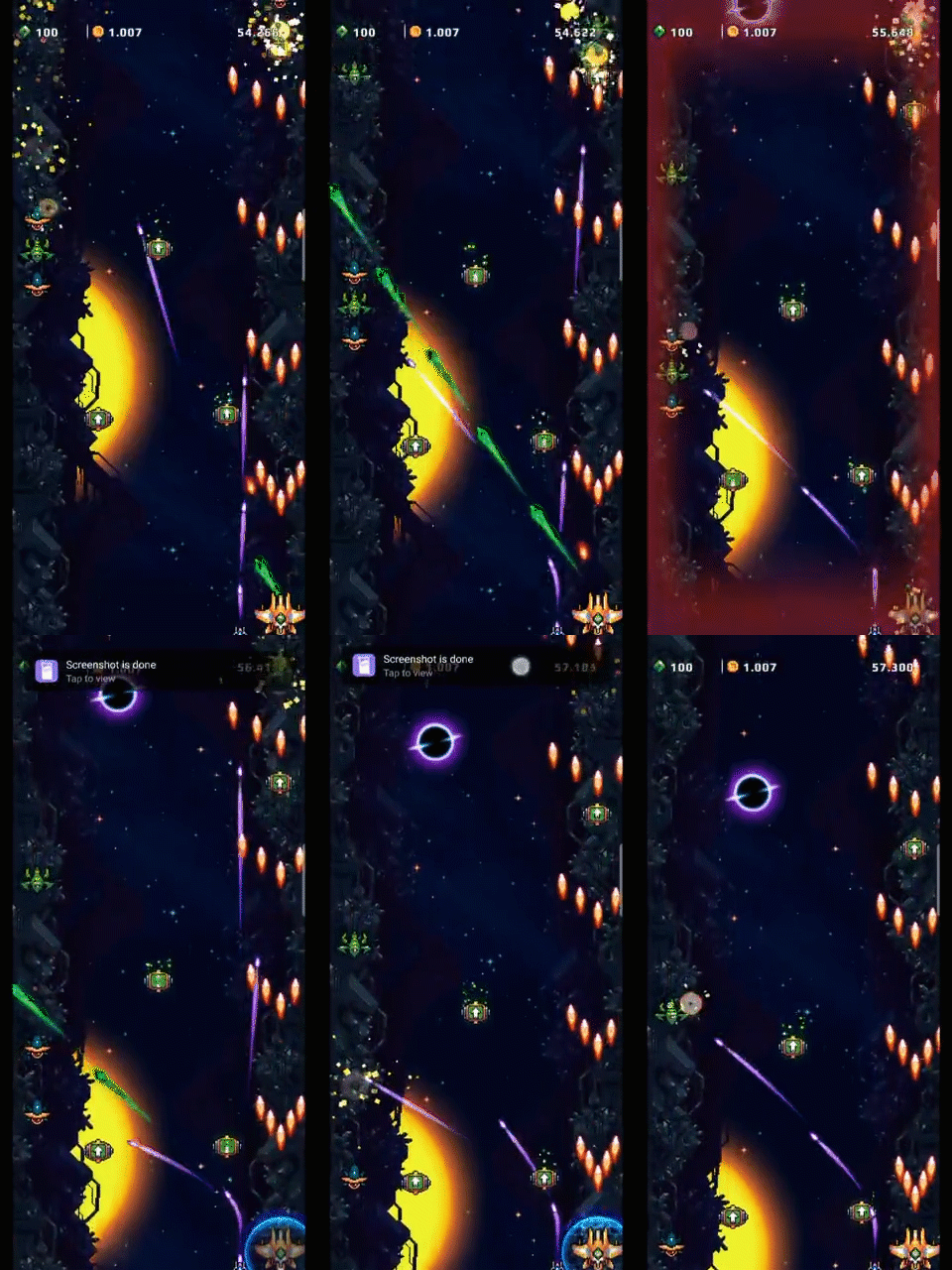
Take Screenshot Without Disturbing your Game
Optimized screenshots in full-screen scenes. In the full-screen scene, after the screen capture is successful, the screen preview is canceled, and the screen capture is successful by means of a simple banner notification.
You can tap the notification to view it or do it later.
Note: Old way of taking a screenshot is still available in some instances.
* Pictures, settings, and paths might differ from those of your phone, but these won't affect the description in this article.
Sponsored Deals
Advertisement · Hand-picked offers, refreshed regularly
These are paid/affiliate advertisements from our partner store and are not related to OPPO or OPPO spare parts.
Related Articles
Sponsored Deals
Advertisement · Hand-picked offers, refreshed regularly
These are paid/affiliate advertisements from our partner store and are not related to OPPO or OPPO spare parts.