How to Use the App Icon Badge on OPPO Phone
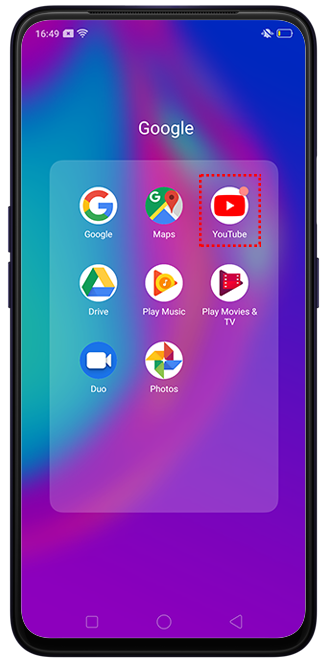
If you feel overwhelmed with the number of unread notifications on top of your app icon, you can always opt to use the Dot Icon Badge feature. OPPO phone's Dot Icon Badge feature displays a small red dot on the top right corner of the app icon when there is an unread notification. Continue reading the simple guide we created below to learn how to enable this feature. Read on!
Note: Check your phone's ColorOS version in [Settings] > [About Phone] / [About Device].
Enable App Icon Badge
For ColorOS 12 to ColorOS 13 and above: Go to [Settings] > [Notifications & Status Bar] > [App icon badges] > [Badge].
For ColorOS 7 to 11.3: Go to [Settings] > [Notifications & Status Bar] > [Manage Notifications] > tap on your preferred app and choose a badge.
For ColorOS 5.0 and 6.1: Go to [Settings] > [Notification & Status Bar] > [Manage Notifications] > tap the preferred app > [Show Home Screen Icon Badge].
For ColorOS 3.0: Go to [Settings] > [Notification and Status Bar] > [Manage Notifications] > select the corresponding app > [Show Home Screen Icon Badge] and toggle the switch to turn on/off.
Note: For other ColorOS versions, you must enable or disable the dot badge for individual apps through Manage Notifications and the dot badge would disappear after you have dismissed or read all unread notifications.
Different App Icon Badges
The following are the different forms of app icon badges:
Number: Shows the number of unread messages or notifications.
Dot: Shows only a dot when there are notifications.
Numbers or dots: Supports both number and dot icon badge.
Do not show: Doesn't display badges on the app.


For apps within a folder, the dot badge on the app folder would mean there are unread notifications for one or more of the apps inside the folder.

Related articles:
* Pictures, settings, and paths might differ from those of your phone, but these won't affect the description in this article.
Sponsored Deals
Advertisement · Hand-picked offers, refreshed regularly
These are paid/affiliate advertisements from our partner store and are not related to OPPO or OPPO spare parts.
Related Articles
Sponsored Deals
Advertisement · Hand-picked offers, refreshed regularly
These are paid/affiliate advertisements from our partner store and are not related to OPPO or OPPO spare parts.