Encode Your Videos with the Video Encoding Function in Reno
Encode Your Videos with the Video Encoding Function in Reno
Learn about the new Video Encoding function on your phone.
Applicable to Reno Series.
Are you having trouble to stream or share video files because it's too large or incompatible in some devices? Worry not, OPPO Reno got your back!
Reno has added the Video Encoding function in it's Camera app, so that all the videos that you shoot can be encoded to a smaller size or compatible format.
Video encoding is a process of compressing and converting the video to meet the required format and size specifications.
There are 2 modes available for Video Encoding:
-
High Efficiency mode compresses large videos to reduce its size, so that it takes up less space.
-
Most Compatible mode transforms the video from the original format into a format that supports playback on old devices.
To activate Video Encoding, go to [Settings] > [System Apps] > [Camera] > [Video Encoding], and choose the preferred mode.
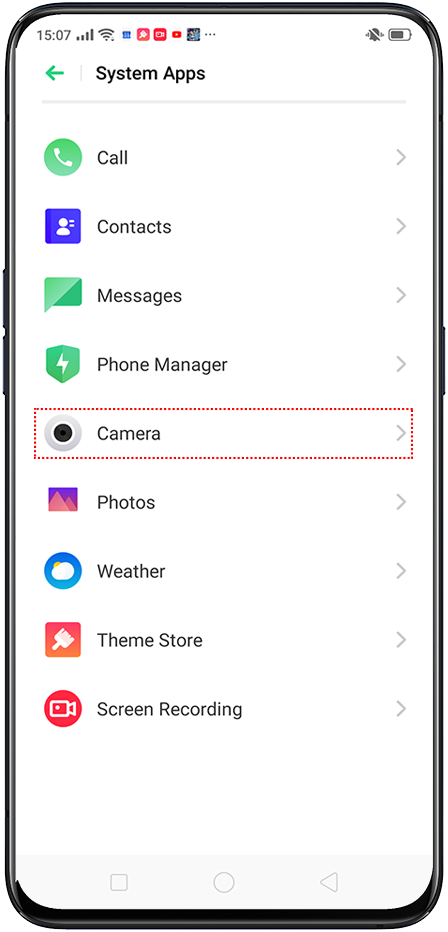
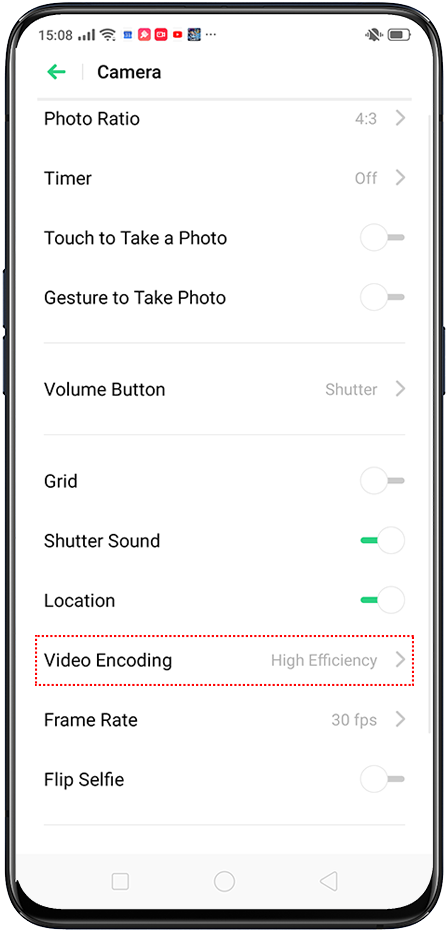
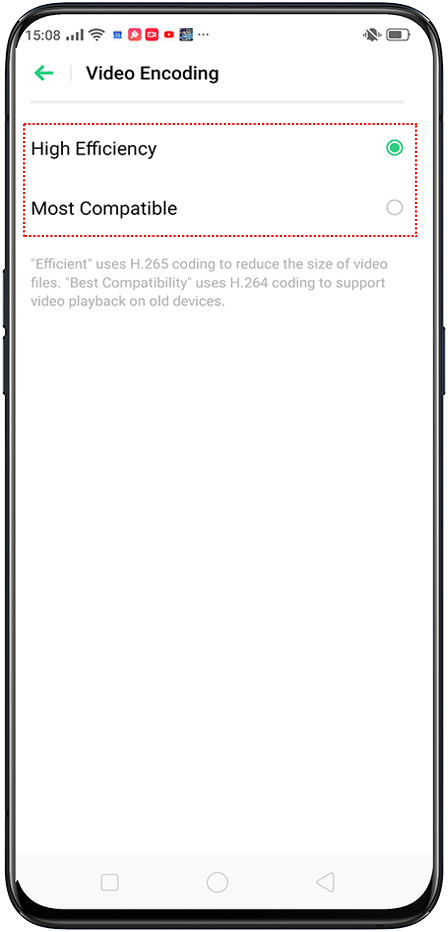
Alternatively, you can also go to [Camera] > [VIDEO] > [Settings]  > [Video Encoding], and choose one of the encoding modes.
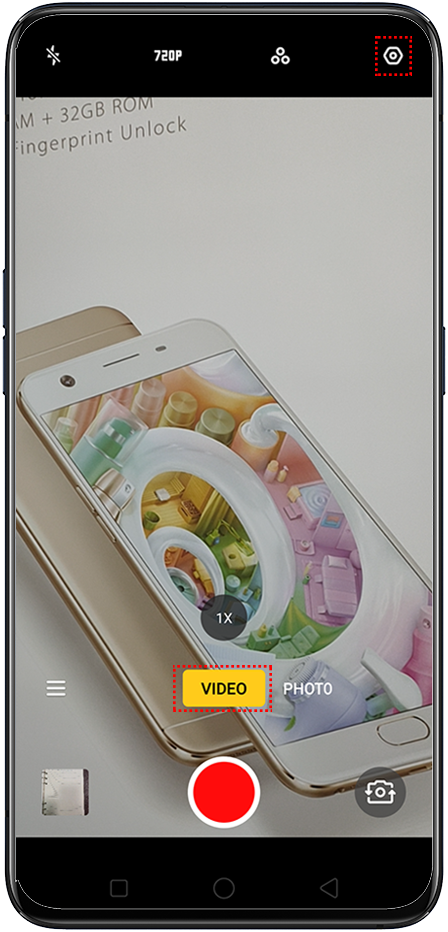
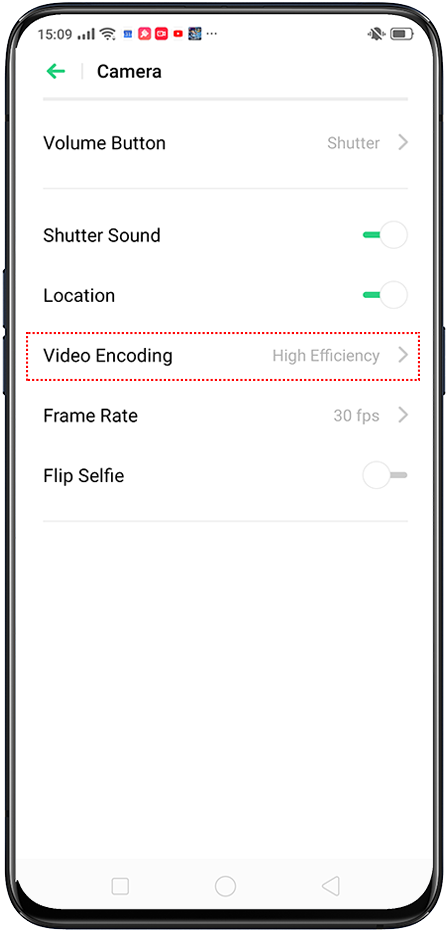
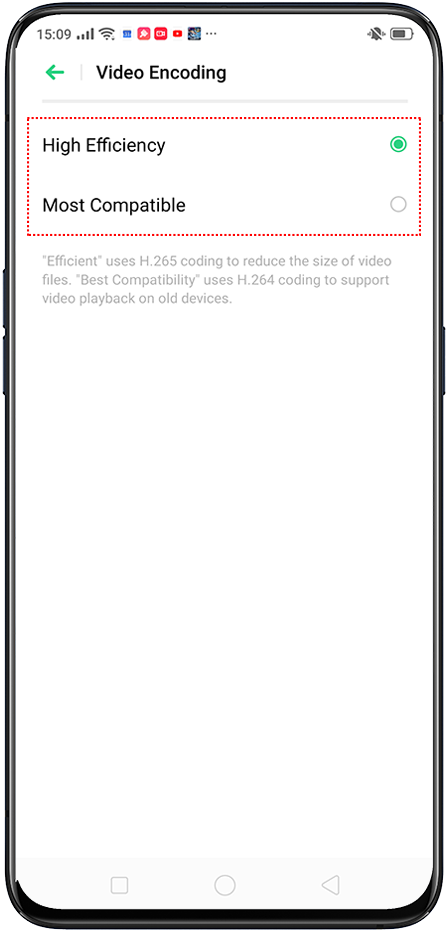
* Pictures, settings, and paths might differ from those of your phone, but these won't affect the description in this article.
Sponsored Deals
Advertisement · Hand-picked offers, refreshed regularly
These are paid/affiliate advertisements from our partner store and are not related to OPPO or OPPO spare parts.
Related Articles
Sponsored Deals
Advertisement · Hand-picked offers, refreshed regularly
These are paid/affiliate advertisements from our partner store and are not related to OPPO or OPPO spare parts.