Capture log guide for OPPO Watch
Capture log guide for oppo watch
1.The logs we need to capture
If the call function fails, you need to capture both the modem log of MO/MT and bugreport
| oppo_log(watch) | bugreport(watch) | oppo_log(mobile) | bugreport(mobile) | |
| Call | √ | √ | √ | √ |
| Signal | √ | √ | √ | √ |
| WIFI | √ | √ | ||
| Bluetooth | √ | √ | √ | √ |
| System APP | √ | √ | ||
| Third-party APP | √ | √ | ||
| eSIM | √ | √ | √ | √ |
2.Preparations required before testing eSIM function
3.How to capture the log on watch?
4.How to capture the log on mobile?
5.How to get the bugreport log?
6.Use QXDM tool to capture modem log
2.Preparations required before testing eSIM function
PS:If you are not testing eSIM functionality, you do not need to perform the following steps
1.1. Connect the watch to the computer and execute watch_adb.bat
1.2. Then watch is disconnected from the computer

2.1 Connect the phone to the computer, uninstall the wear os app on the phone first
2.2 Reinstall the wear os app
2.3 Execute phone_adb.bat

2.4 Execute adb shell logcat -b main -b system -b radio -v time >D:\log.txt
Then carry out related tests. Make sure the phone is always connected to the computer
When the test is over, Run ctrl+c in the cmd window, and get log.txt on the D drive
3.How to capture the log on watch?
3.1-Capture log on the watch:
1. MMI options (setting -- system -- about -- click "serial number" for 8 times continuously)
2.Setting --MMI, enter *#800#, Enter the capture log interface.
A.Signal,the watch network related issues,need to select Net,And then click Capture Logs.
B.For different issues, need to select the corresponding log capture (such as bluetooth select bluetooth, wifi issues to choose wifi option)
C.The regular log needs to be turned on power log&CPU sampler
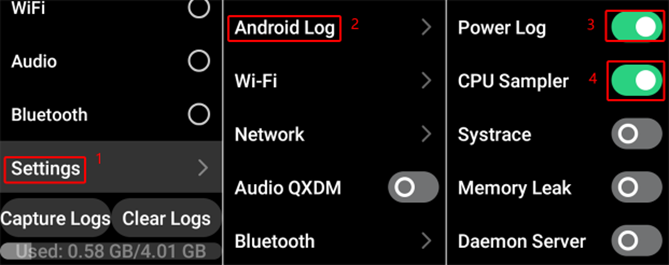
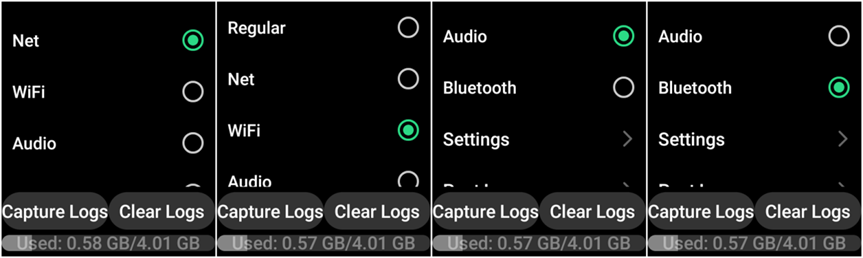
3.2-Export the log of the watch:
1.MMI,>>enter *#800#>>click stop>>The watch is connected to the computer
2.Execute adb pull sdcard/oppo_log D:\log

3.You can get an oppo_log file under D:\log
4.How to capture the log on mobile?
4.1-Capture log on the mobile:
4.1.1 Open the dial app on the mobile by entering the following string code *#800#
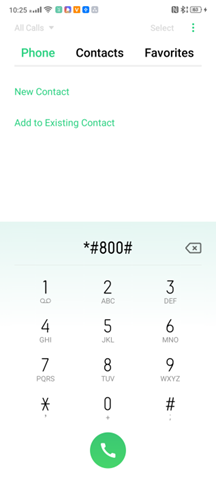
4.1.2 You need to select the Delault and click Start logging, reboot(select no)
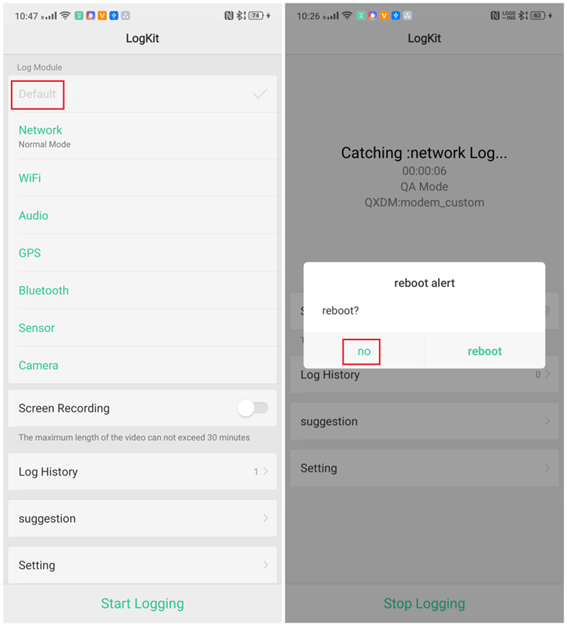
4.2-Export the log of the mobile
4.2.1.Click stop Logging,The mobile is connected to the computer
2.Execute adb pull sdcard/oppo_log D:\log

3.You can get an oppo_log file under D:\log
If it is an issue with the call network, you need to connect the mobile to the QXDM tool to capture the modem log
5.How to get the bugreport log?
1. First, you need to upgrade the adb version (copy the three files to the adb root directory)
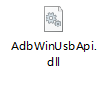


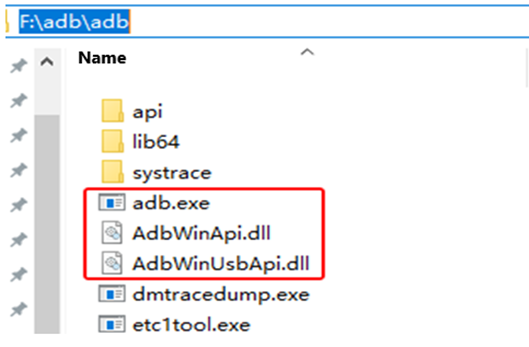
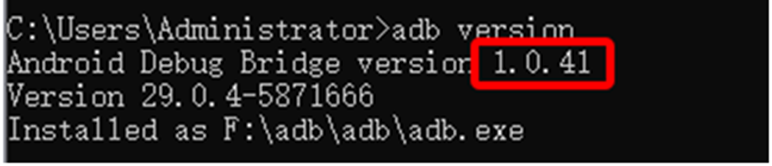
2.Run adb version to verify that the ADB update was successful (1.0.41 is correct)
3.Watch connected to computer,Execute adb bugreport
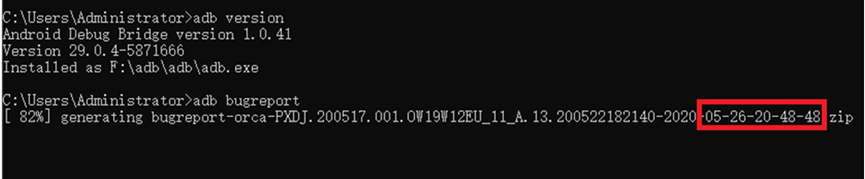
4.After waiting for bugreport to be generated, execute adb pull /bugreports/ D:\log

5.You can get the bugreport under the D:\ log \bugreports
PS:If you get multiple bugreports, you only need to provide the file named at the current export time

6.Use QXDM tool to capture modem log
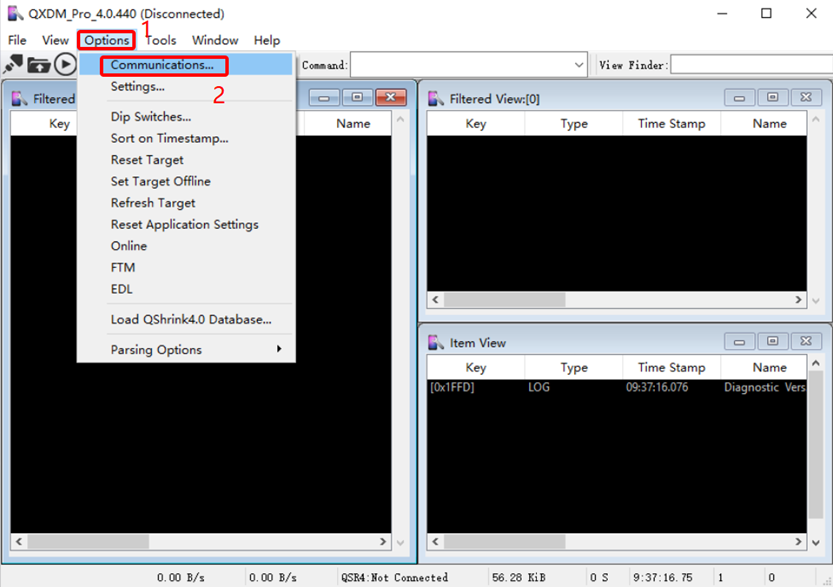
1. Connect the watch to PC and open the QXDM tool
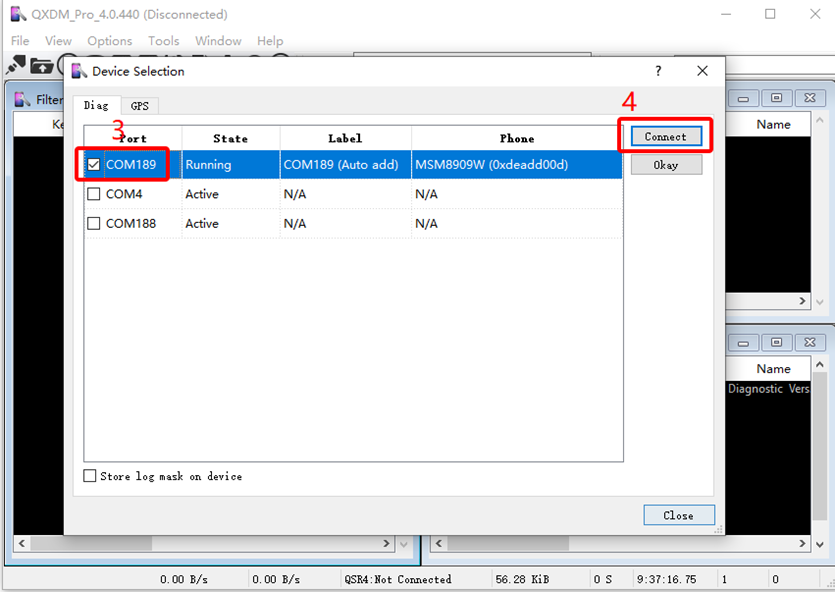
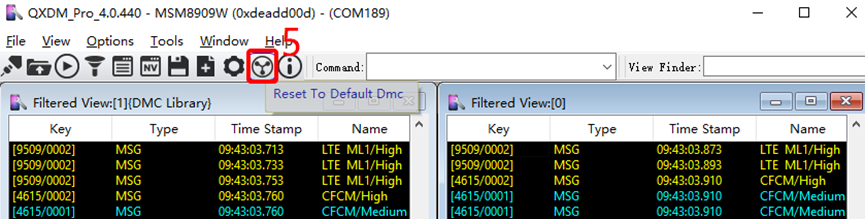
2.Click the "fan" icon and select Yes to open the QXDM default window
3.When the log has been captured,, you can save the log by Ctrl+I, and a save window will pop up. Select the directory to be saved and click save
4. The "ALT+I" key combination clears the log
Sponsored Deals
Advertisement · Hand-picked offers, refreshed regularly
These are paid/affiliate advertisements from our partner store and are not related to OPPO or OPPO spare parts.
Related Articles
Capture Great Street Life at Night on OPPO Phones with This Guide!
Sponsored Deals
Advertisement · Hand-picked offers, refreshed regularly
These are paid/affiliate advertisements from our partner store and are not related to OPPO or OPPO spare parts.