AI Features

Use AI Eraser (Smart lasso and Paint over & Remove people) on OPPO Reno13 Pro 5G

17 steps · OPPO Reno13 Pro 5G · Android OS v15

  1. 1

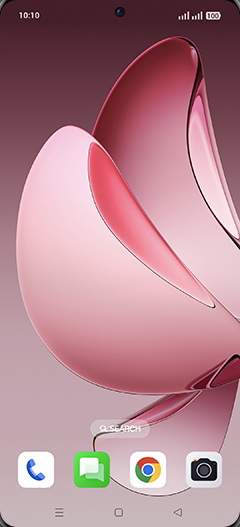
    Swipe Up.

    Step 1: Swipe Up.
  2. 2

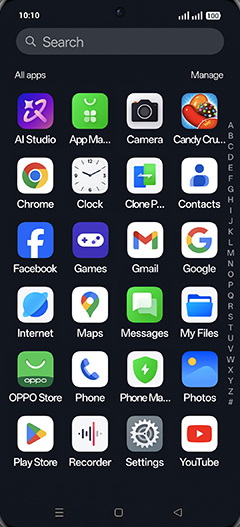
    Tap on Photos icon.

    Step 2: Tap on Photos icon.
  3. 3

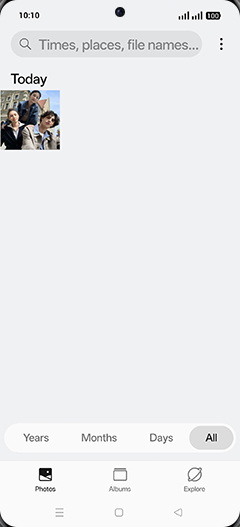
    Tap on Albums tab.

    Step 3: Tap on Albums tab.
  4. 4

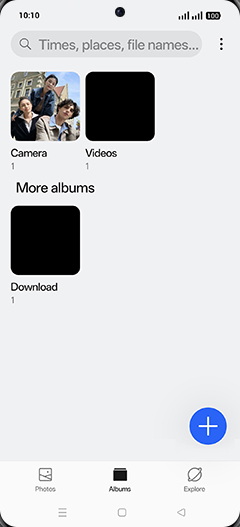
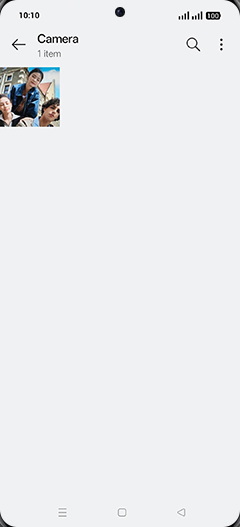
    Tap on Image folder.

    Step 4: Tap on Image folder.
  5. 5

    Tap on desired Photo.

    Step 5: Tap on desired Photo.
  6. 6

    Tap on Edit.

    Step 6: Tap on Edit.
  7. 7

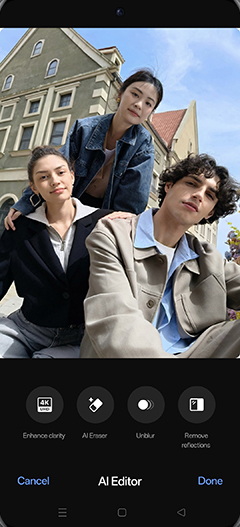
    Tap on AI Editor.

    Step 7: Tap on AI Editor.
  8. 8

    Tap on AI Eraser.

    Step 8: Tap on AI Eraser.
  9. 9

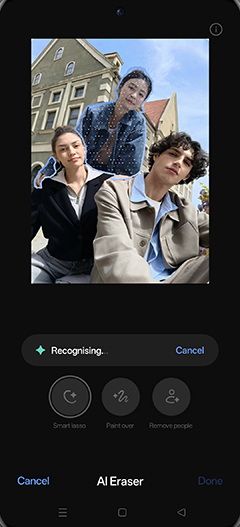
    Tap on Smart lasso and select an object.
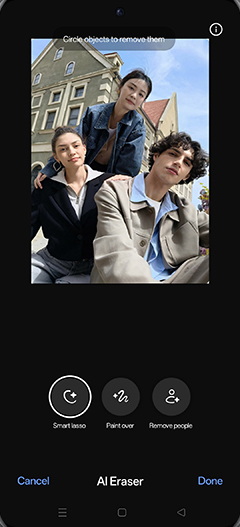
    Step 9: Tap on Smart lasso and select an object.
  10. 10

    Removing.

    Step 10: Removing.
  11. 11

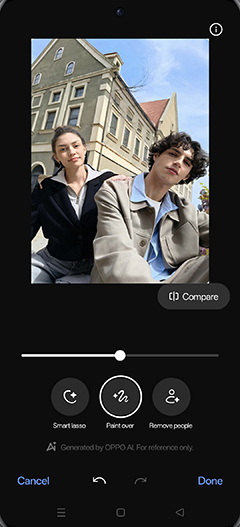
    Object removed and tap on Paint over.
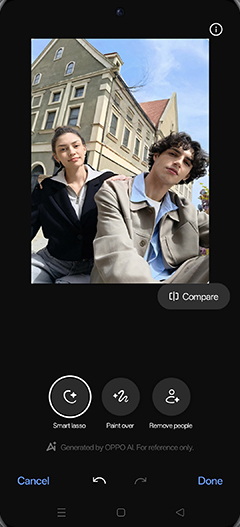
    Step 11: Object removed and tap on Paint over.
  12. 12

    Select an object.

    Step 12: Select an object.
  13. 13

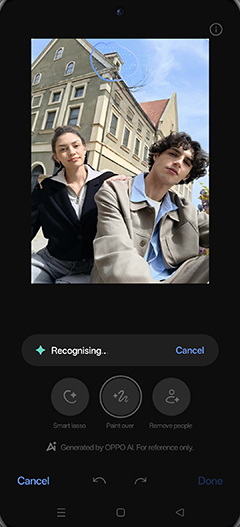
    Recognising the paint.

    Step 13: Recognising the paint.
  14. 14

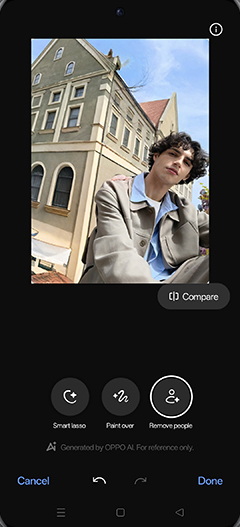
    Object removed and tap on Remove people.
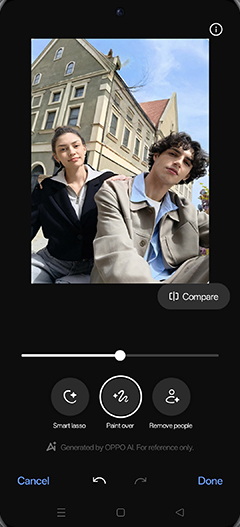
    Step 14: Object removed and tap on Remove people.
  15. 15

    Recognising the People, Tap on Remove all.
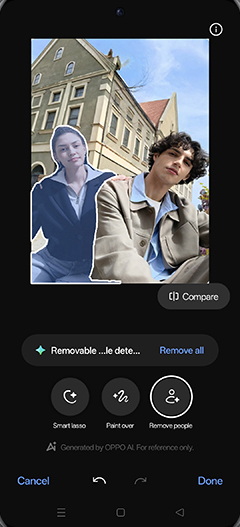
    Step 15: Recognising the People, Tap on Remove all.
  16. 16

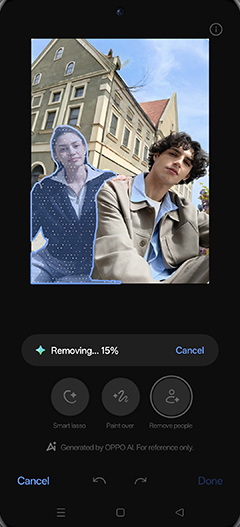
    Removing the People.

    Step 16: Removing the People.
  17. 17

    Tap on Done.

    Step 17: Tap on Done.