Use AI Best Face Feature on OPPO Reno13 Pro 5G
12 steps · OPPO Reno13 Pro 5G · Android OS v15
- 1
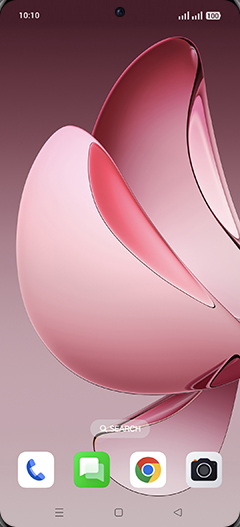
Swipe up.
- 2
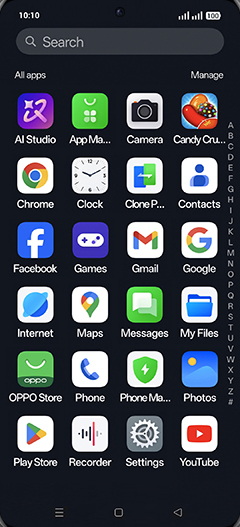
Tap on Camera icon.
- 3
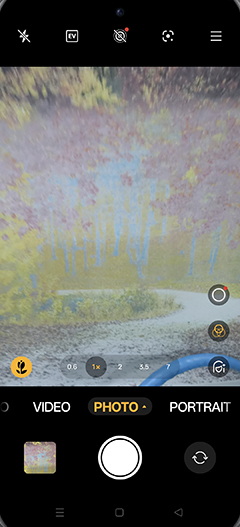
Tap on Camera Twist icon.
AI Best Face supports photos taken with either the front or rear camera, but AI Clear Face only supports photos taken with the front camera. If a photo is taken with the rear camera, this feature only works when the number of people in the photo ranges from 3 to 20. If a photo is taken with the front camera, this feature only works when the number of people in the photo ranges from 3 to 10
- 4
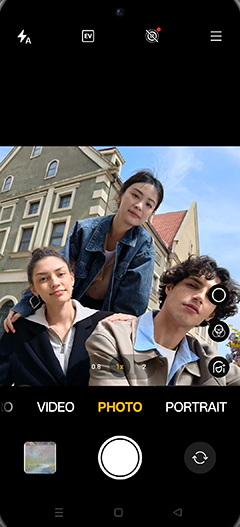
Click a group photo and tap on Back.
Take a photo of 3 or more people facing the camera.
- 5
Tap on Photos icon.
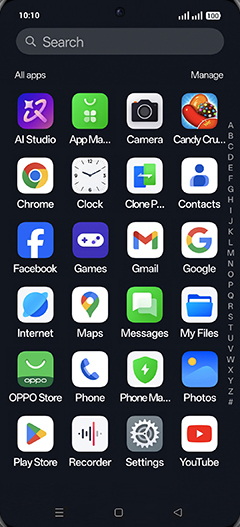
- 6
Tap on Albums tab.
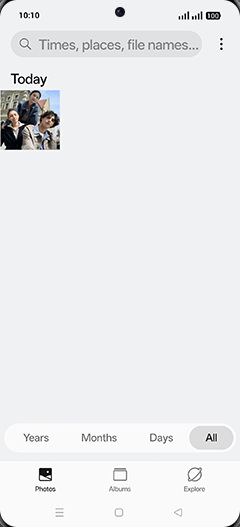
- 7
Tap on desired folder.
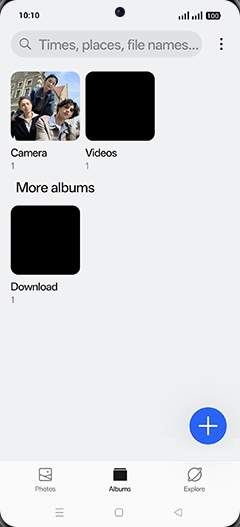
- 8
Tap on Group photo.
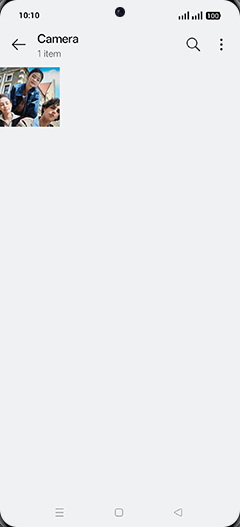
- 9
Tap on AI Perfect shot icon.
For AI Best Face to work, make sure your device is connected to the internet.
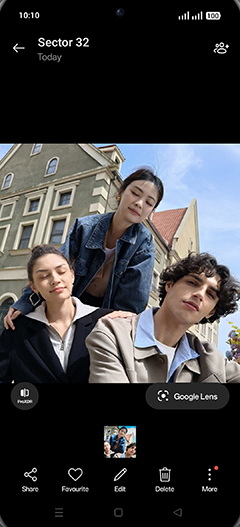
- 10
Tap on AI Best Face.
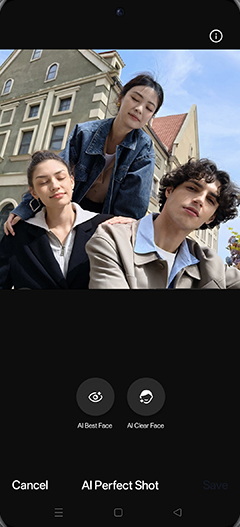
- 11
Enhancing face details.
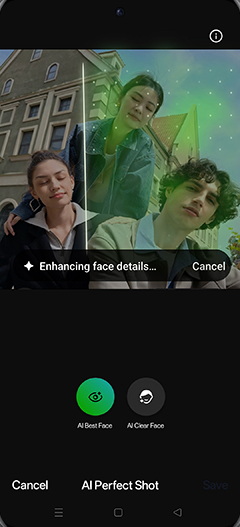
- 12
Tap on Save.
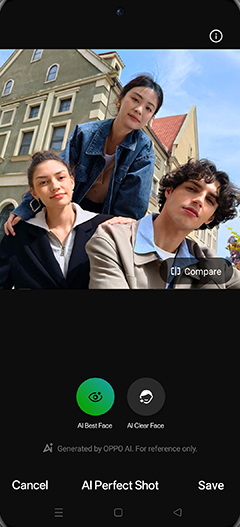
View on OPPO: Use AI Best Face Feature on the official OPPO site